![vfairs-logo-landscape-white-3.png]](https://help.vfairs.com/hs-fs/hubfs/vfairs-logo-landscape-white-3.png?height=40&name=vfairs-logo-landscape-white-3.png)
-
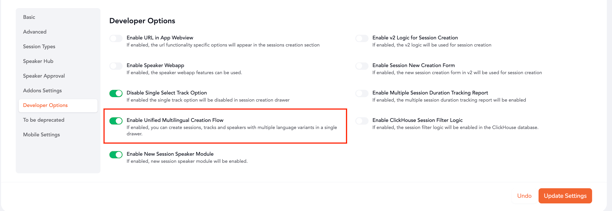
Navigate to Backend → Session Settings, open Developer Options, and enable the “Unified Multilingual Creation Flow” toggle.
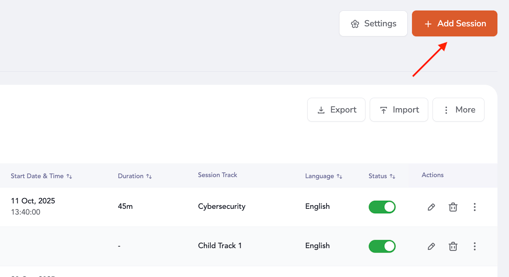
2. Once enabled, go to the Sessions Listing page and click “Add Session.”
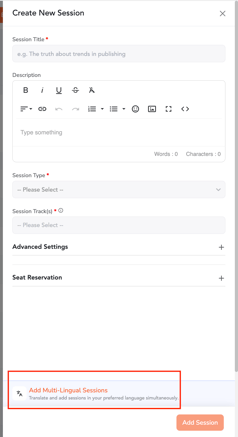
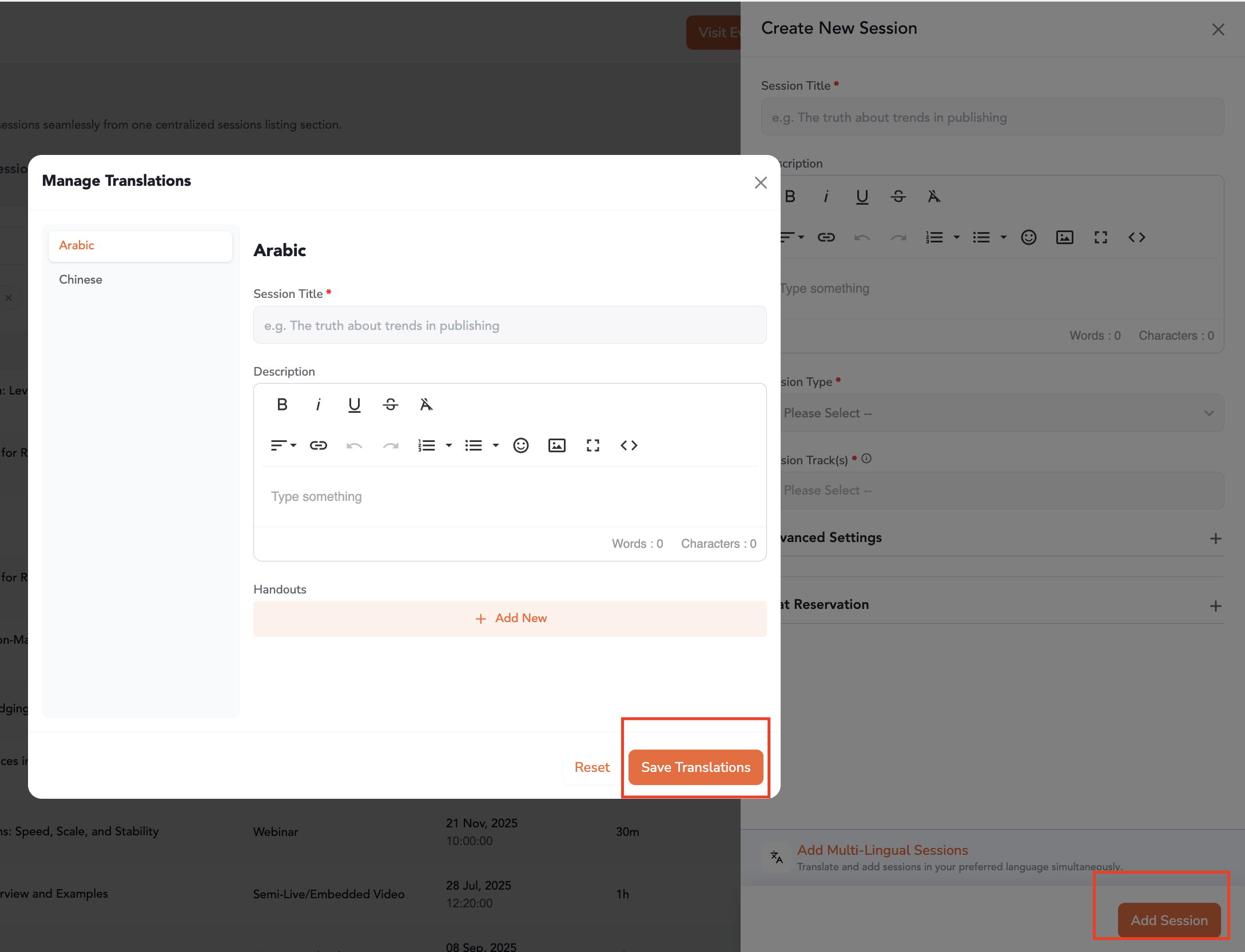
3. Enter the session’s basic details in the default language. Then, click “Add Multilingual Sessions” at the bottom of the drawer to open the language variants section.
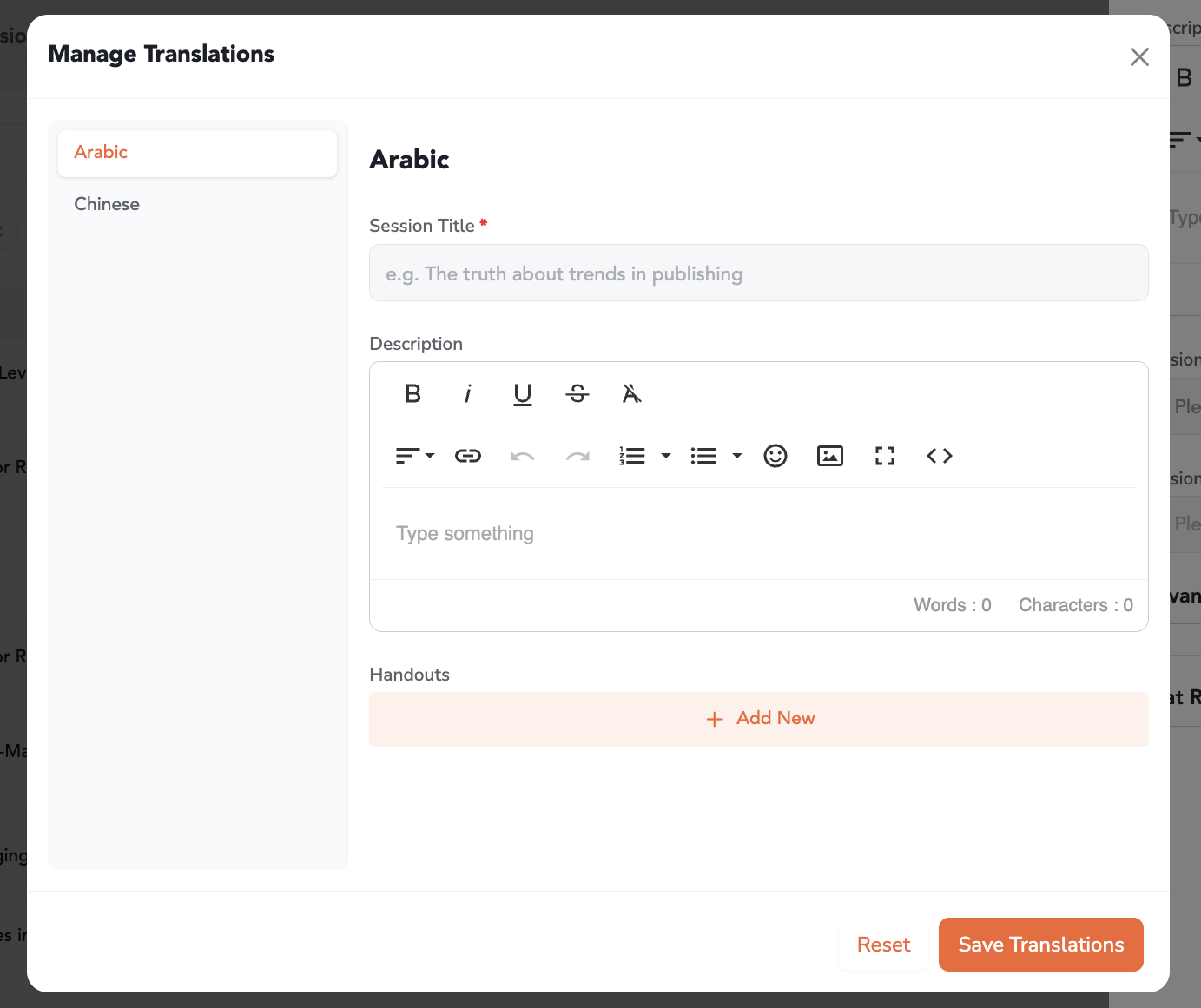
4. Provide the translated details for each language relevant to your event.
Note: The following fields support translation:
-
Session Title
-
Session Description
-
Session Handouts
-
Session URL (available for Semi-Live and On-Demand session types only)
-
Click “Save Translation” for each added language, then select “Save” on the main drawer to finalize the session and all associated language variants.
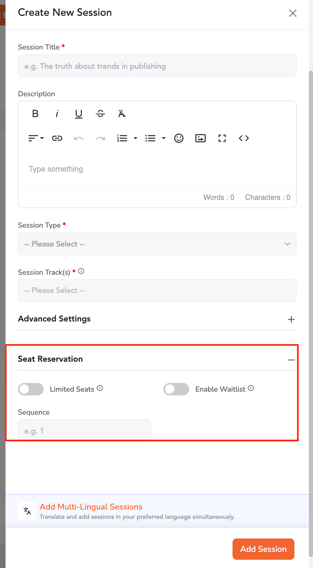
Once saved, the session and its language variants will share the same session ID. Any unified settings such as total seat limits will be applied collectively across all variants on the frontend.
REPORTING MECHANISM
1. In order to extract reports, head over to the backend > analytics > post event reports > report type > sessions section.
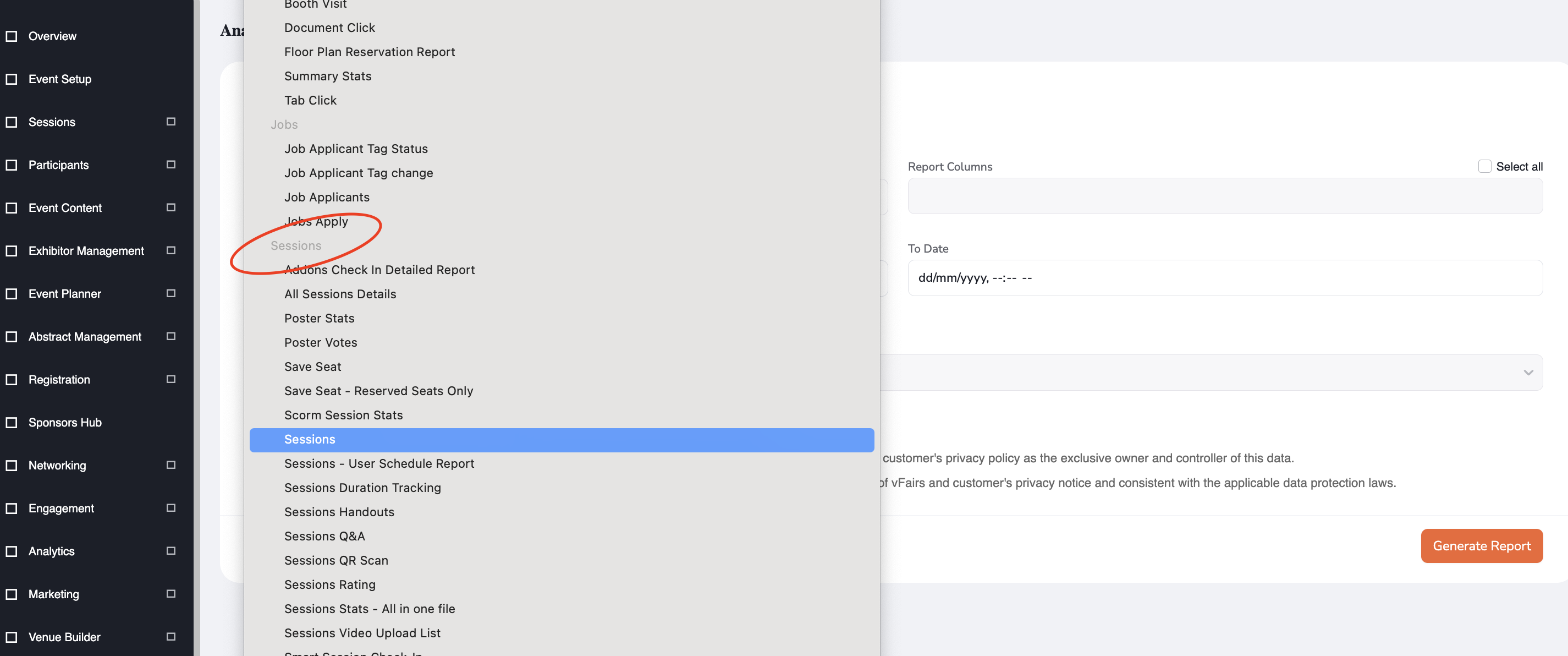
2. Session-related reports will include language variants as separate columns, with each column displaying the details specific to its respective language version.

EXPORT MECHANISM
The exported CSV file for sessions will also support the multilingual setup, displaying the details of each language variant as entered during session creation.