![vfairs-logo-landscape-white-3.png]](https://help.vfairs.com/hs-fs/hubfs/vfairs-logo-landscape-white-3.png?height=40&name=vfairs-logo-landscape-white-3.png)
Step 1: Open the Language Settings
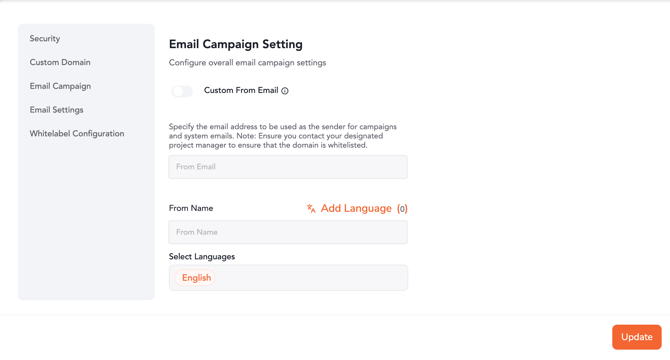
Navigate to the Organization section in your backend.
Click on Email Settings under Organization.
In the From Name row, you will see an option to Add Language next to the input field.
Step 2: Select Languages for Translation
Click the Add Language button to begin adding translations for your From Name.
-
A modal will open where you can select languages you want to support.
-
Supported languages will appear as selectable chips (e.g., English, Arabic, Chinese, etc.).
If you select multiple languages, they will appear in a scrollable list for easy access.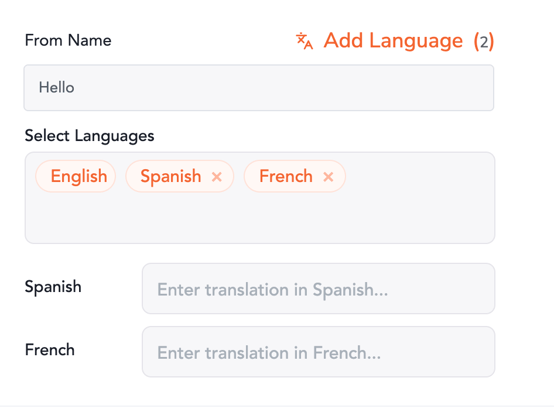
Step 3: Add Translations for Each Language
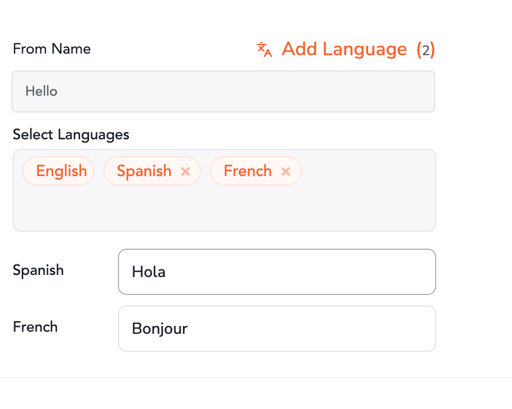
Once the languages are selected, the Add Language Translations modal will allow you to:
-
View the default “From Name” in English (the original text).
-
Enter translations for each selected language in the text box below the language name.
Step 4: Save Translations
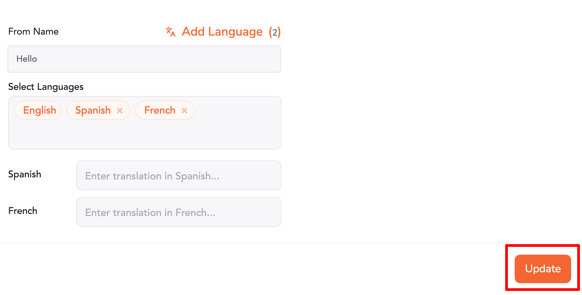
After entering translations for the From Name, click Save Translations to store them.
-
Only languages with entered translations will be saved.
Step 5: Using Translations in Email Campaigns
When sending out an email campaign:
-
The correct “From Name” will automatically be selected based on the language of the event or the default language setting.
-
If translations have not been added at the organization level, the system will fall back to the default language set at the event level.