![vfairs-logo-landscape-white-3.png]](https://help.vfairs.com/hs-fs/hubfs/vfairs-logo-landscape-white-3.png?height=40&name=vfairs-logo-landscape-white-3.png)
Step-by-Step Instructions
-
Log In
- Go to the Organization Events Dashboard.
- Enter your credentials and log into your account.
-
Access Organization Profile
- Once logged in, navigate to the left-hand menu.
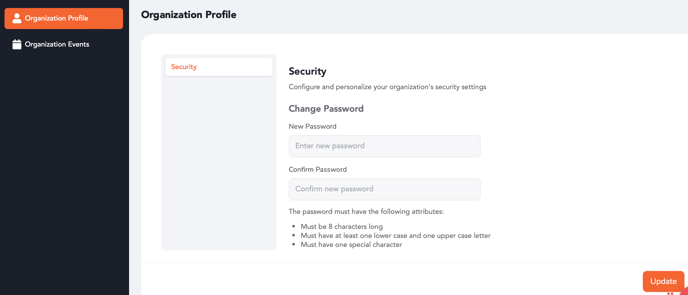
- Click on Organization Profile.
-
Update Password
- Scroll to the Security section.
- Click the Change Password option.
-
Set a New Password
- Enter your new password, ensuring it meets the following criteria:
- At least 8 characters long.
- Includes one uppercase and one lowercase letter.
- Contains at least one special character (e.g., @, #, $, etc.).
- Enter your new password, ensuring it meets the following criteria:
-
Confirm and Save
- Re-enter the password for confirmation.
- Click Update to save your new password.