![vfairs-logo-landscape-white-3.png]](https://help.vfairs.com/hs-fs/hubfs/vfairs-logo-landscape-white-3.png?height=40&name=vfairs-logo-landscape-white-3.png)
Step 1: Create a Session Location
-
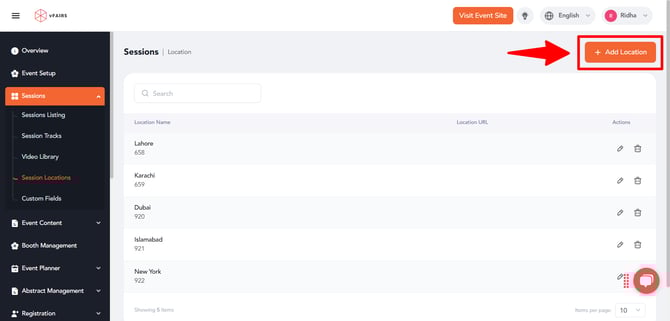
Navigate to Agenda & Speakers from the event backend.
-
Click on Session Locations.
-
Click Add Location.
-
Enter the Location Name and select Sessions as the location type.
-
Click Save to create the location.
Step 2: Assign the Location to a Session
-
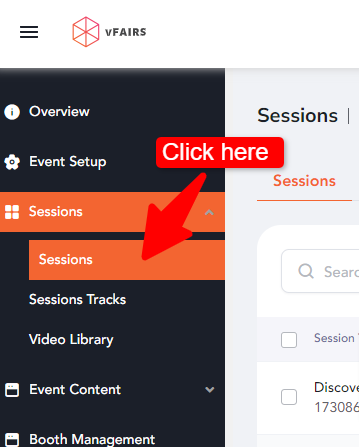
Go to Agenda & Speakers → Sessions Listing.
-
Select the session you want to update.
-
Click the Edit (Pencil) icon.
-
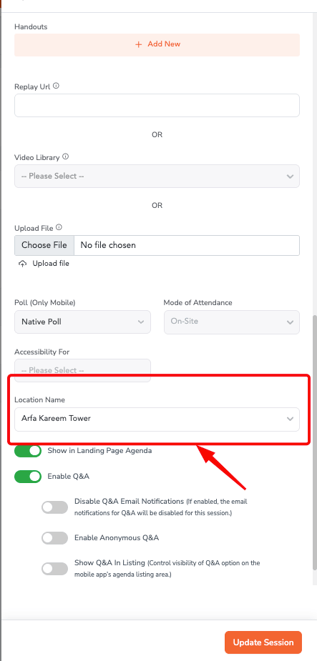
Scroll down to the Advanced Settings section.
-
From the Location Name dropdown, select the created location.
-
Click Update Session to save the changes.
Step 3: Enable Location Display in Agenda Layout
-
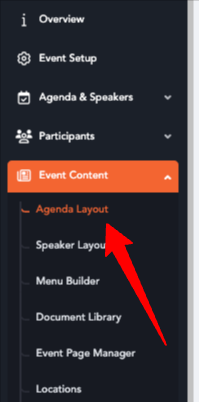
Navigate to Event Content → Agenda Layout.
-
Select the relevant Session Track(s).
-
Choose your preferred Agenda Style.
-
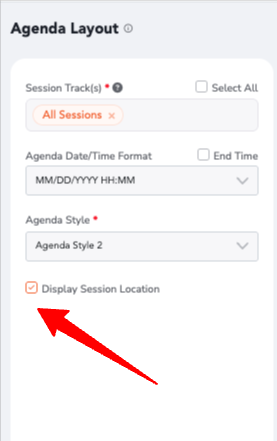
Enable the checkbox Display Session Location.
-
Click Preview to confirm the changes.

-
Click Save to apply the layout updates.
Once these steps are completed, the assigned session locations will appear directly on the agenda, displayed beneath each session title for attendees.