![vfairs-logo-landscape-white-3.png]](https://help.vfairs.com/hs-fs/hubfs/vfairs-logo-landscape-white-3.png?height=40&name=vfairs-logo-landscape-white-3.png)
Step 1: Enable the Scavenger Hunt Add-on
Before personalizing the Scavenger Hunt, ensure the feature is enabled for your event.
-
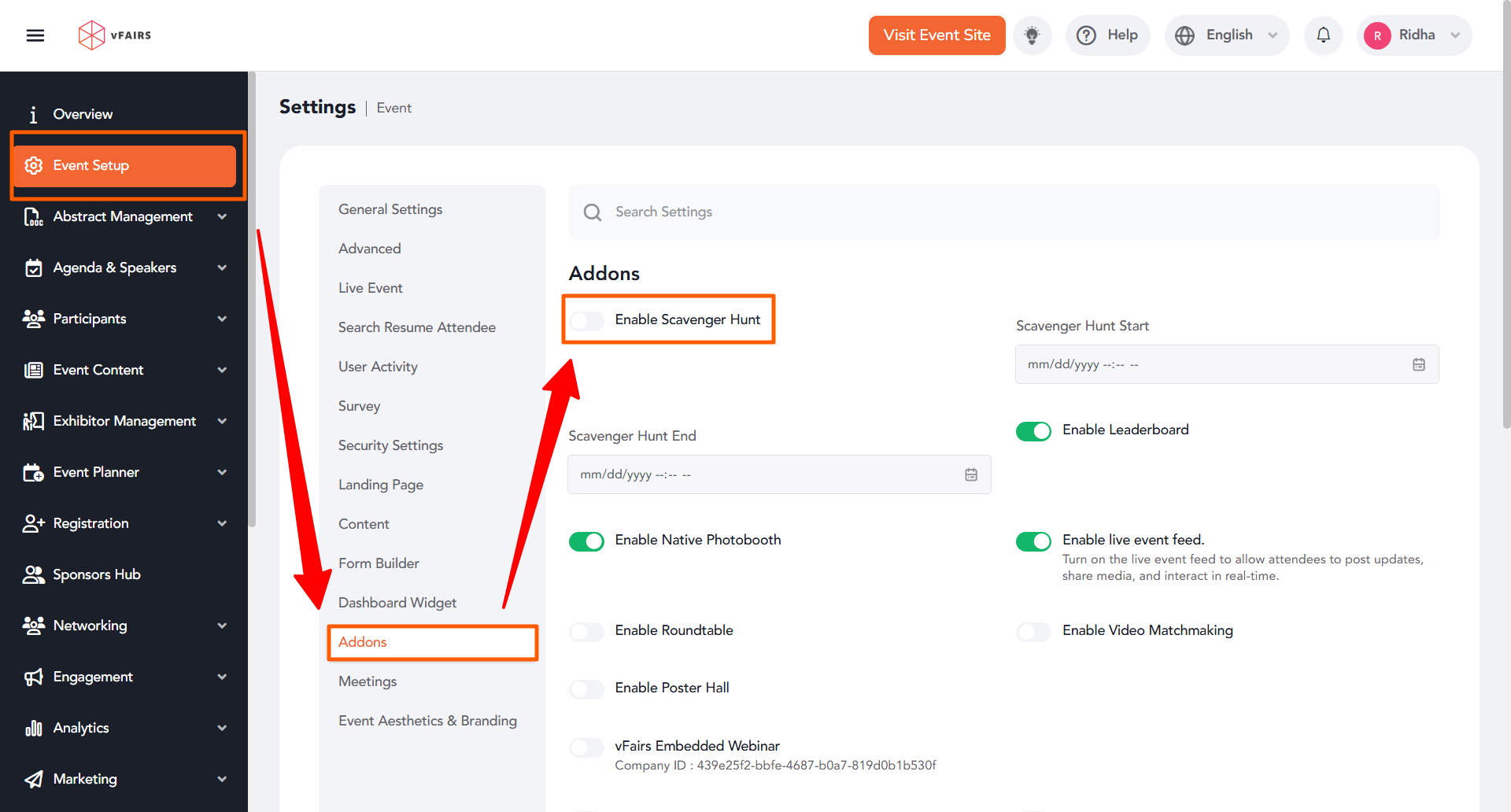
Navigate to Event Setup from the left-hand navigation menu.
-
Click on Add-ons.
-
Locate the Scavenger Hunt toggle.
-
Enable the toggle if it is not already turned on.
Once enabled, the Scavenger Hunt module will become available under the Engagement section.
Step 2: Access the Scavenger Hunt Module
-
From the left-hand navigation menu, click on Engagement.
-
Select Scavenger Hunt.
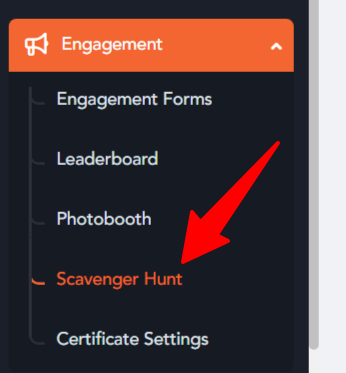
You will be redirected to the Scavenger Hunt management screen.
Step 3: Open Scavenger Hunt Settings
-
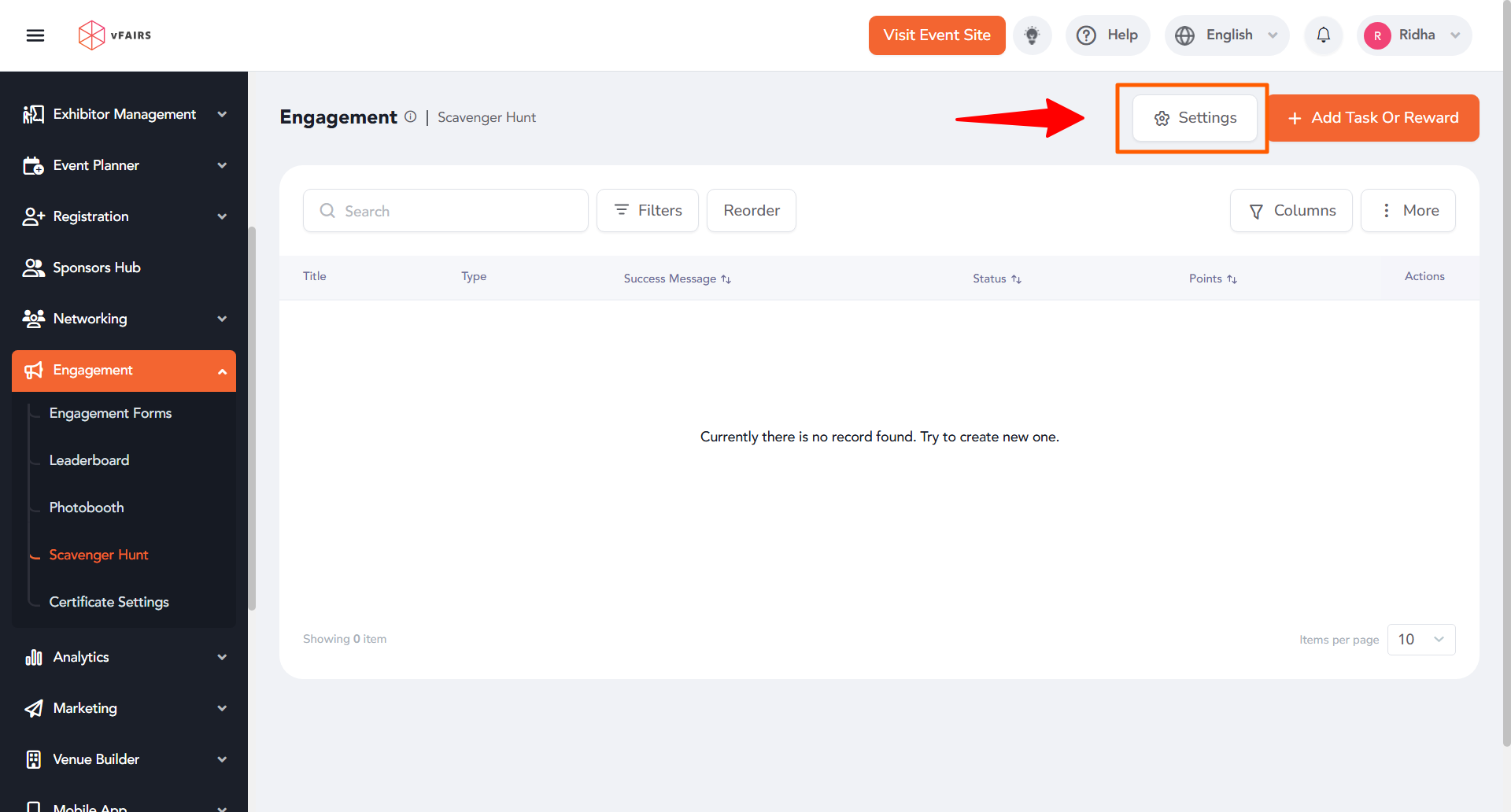
On the Scavenger Hunt screen, locate the Settings tab in the top-right corner.
-
Click Settings to access customization options.
Step 4: Personalize Basic Settings
Under the Basic Settings section, you can configure the following options:
Add a Custom Image
Upload a custom image to match your event branding. This image will be displayed within the Scavenger Hunt interface. 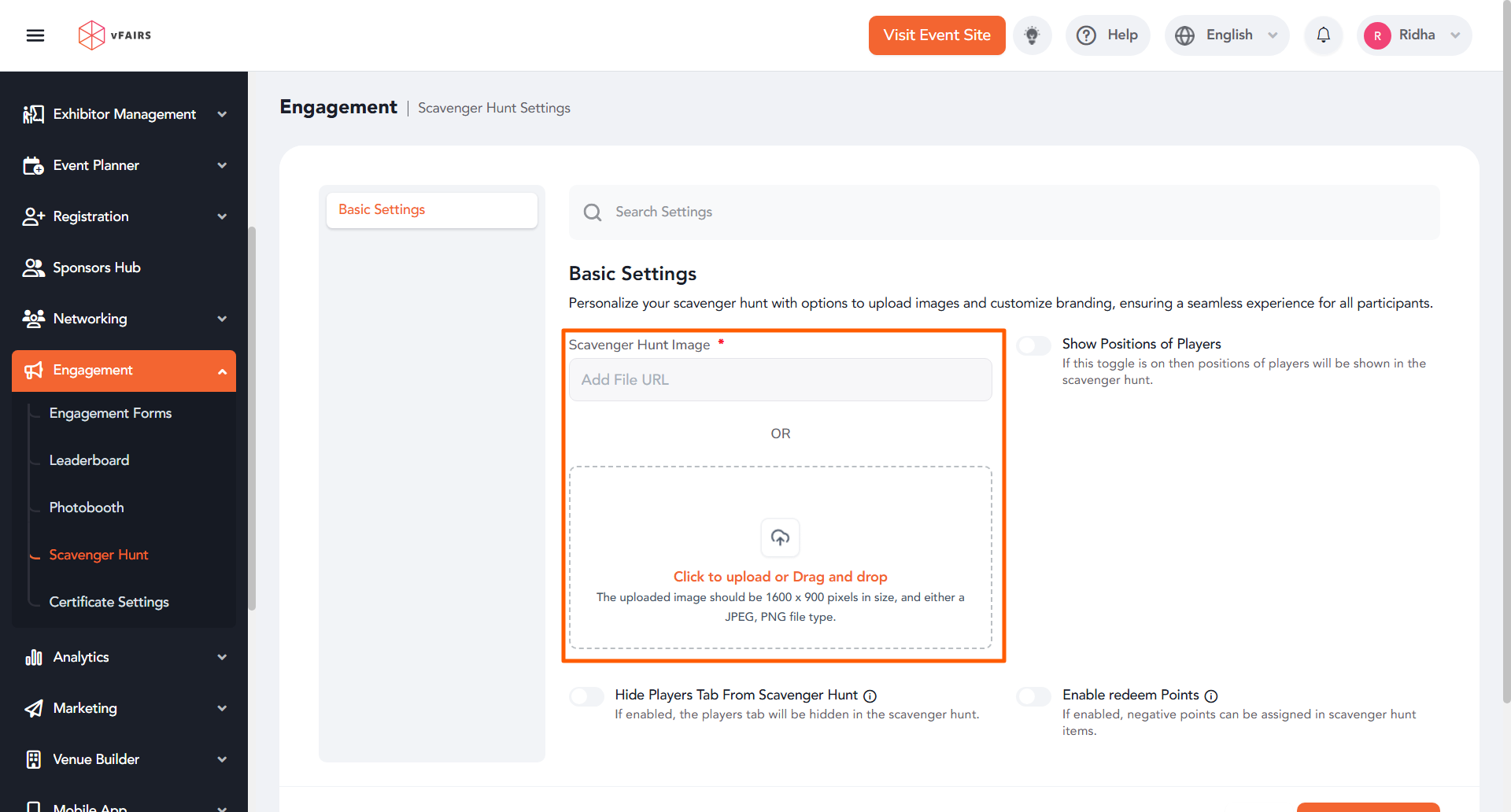
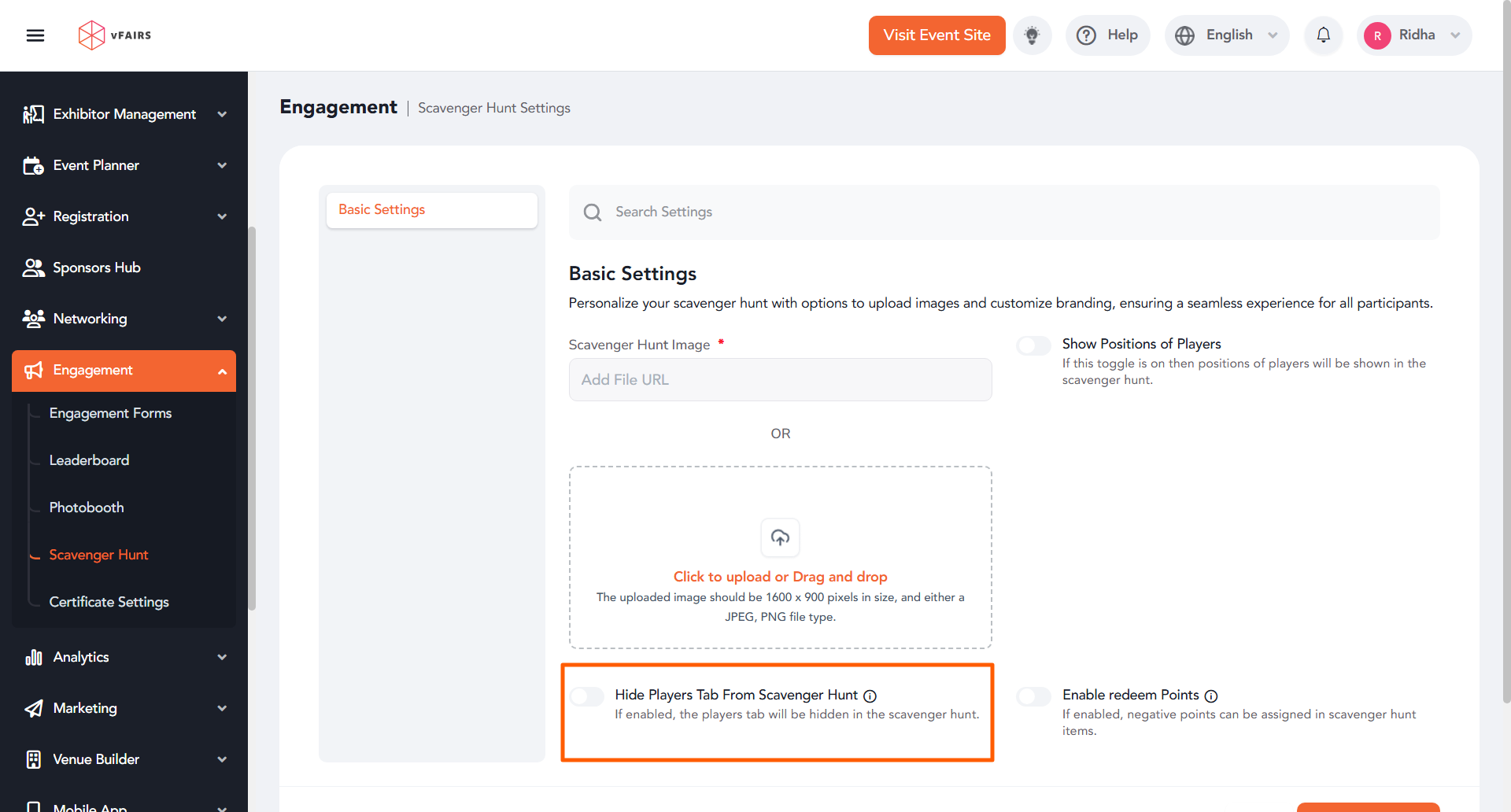
Hide the Players Tab
Enable this option if you do not want participants to see the list of other players.
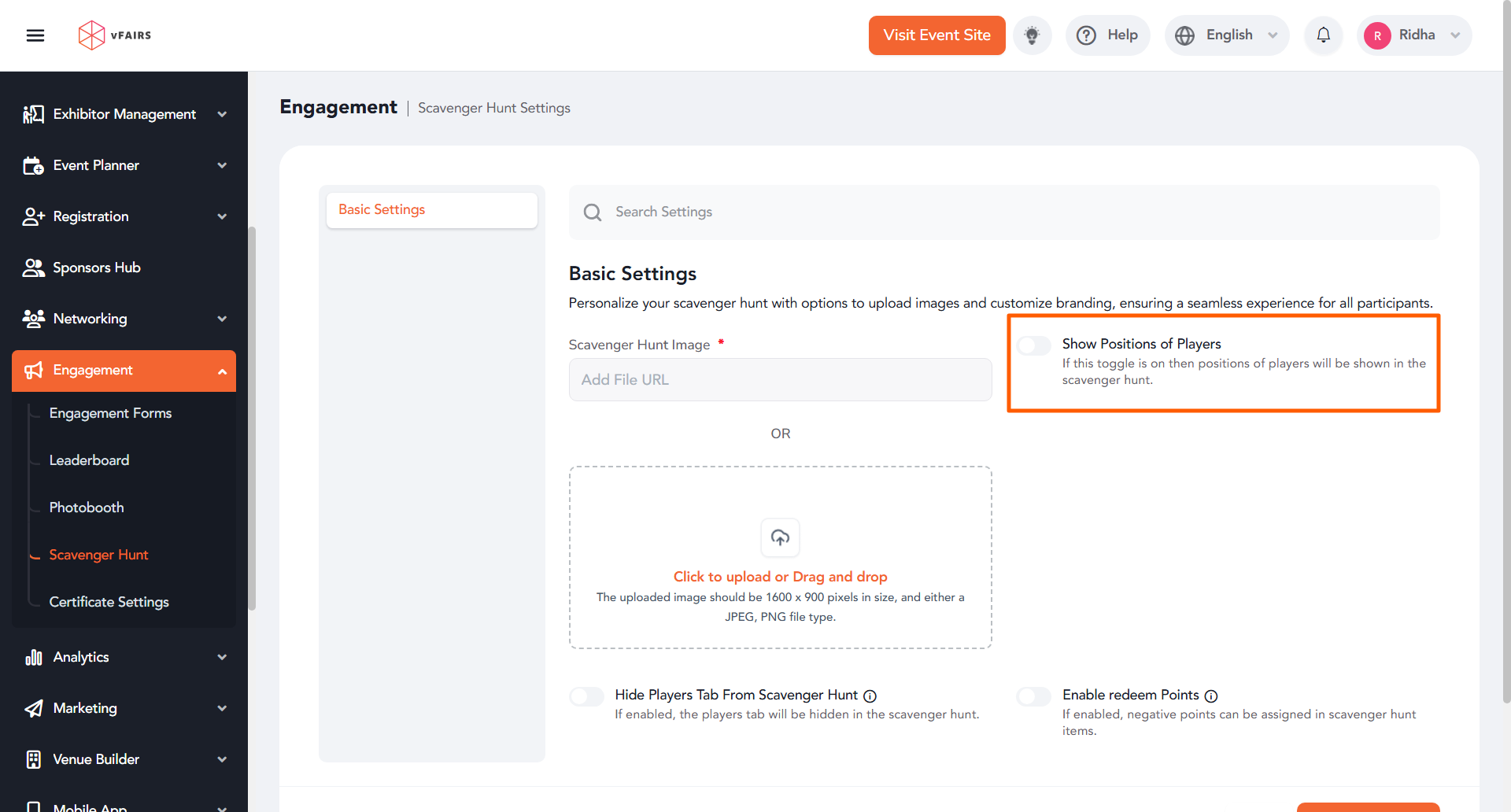
Show Player Positions
Enable this setting to display participant rankings and positions on the leaderboard.
These options allow you to tailor the experience based on your event’s engagement goals.
Best Practices
-
Use a branded image for a cohesive event experience.
-
Hide the Players tab if you prefer a more private competition.
-
Enable player positions to encourage friendly competition and boost engagement.