![vfairs-logo-landscape-white-3.png]](https://help.vfairs.com/hs-fs/hubfs/vfairs-logo-landscape-white-3.png?height=40&name=vfairs-logo-landscape-white-3.png)
Step 1: Access the Sessions Section
-
Log in to your backend portal.
-
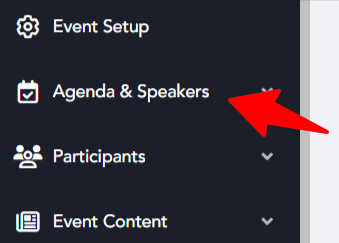
Navigate to the Agenda and Speakers section in the left-hand navigation menu.
Step 2: Open Session Listing
-
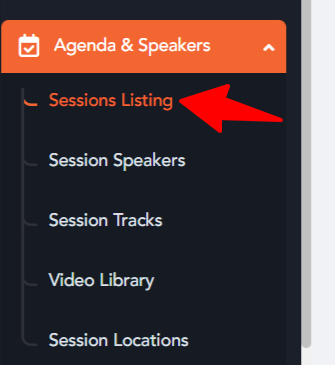
Within the Agenda and Speakers section, click on Session Listing to view all available sessions.
Step 3: Open Settings
-
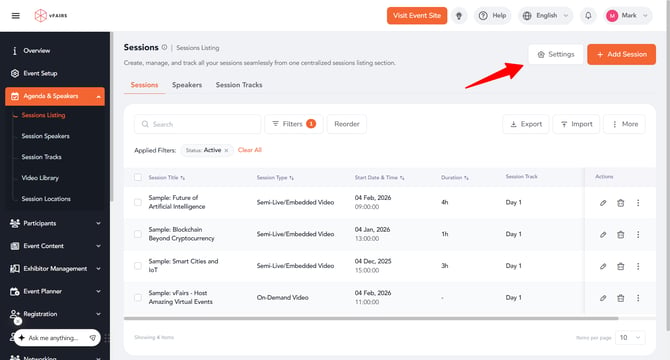
Locate the Settings button in the top-right corner of the screen.
-
Click on the Settings button to access additional session configuration options.
Step 4: Enable Onsite Sessions
-
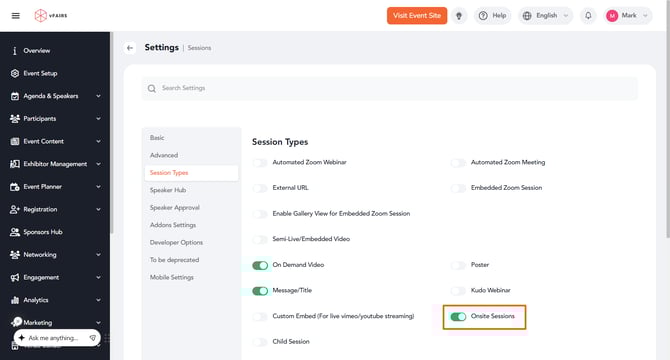
In the Settings screen, navigate to the Session Types tab.
-
Find the toggle labeled Onsite Sessions.
-
Enable the toggle by clicking on it. Once enabled, the feature will allow the configuration of onsite sessions for your sessions.
Step 5: Save Your Changes
-
After enabling the toggle, click on the Update Settings button.
-
This will save your changes and activate the onsite sessions feature for applicable sessions.

Tips for Using In-Person Webinar
-
Communicate with Attendees: Inform attendees that the session will be conducted in person (Onsite) to set clear expectations.
-
Test Ahead of Time: Verify all logistical and technical requirements for the onsite sessions to ensure a smooth experience.
-
Integrate Tools: Leverage digital tools such as Q&A and polls to enhance engagement during the onsite session.
Conclusion
Enabling the onsite sessions option is a straightforward process that enhances your event capabilities. By following these steps, you can easily configure your platform to support onsite sessions and deliver a seamless experience for both attendees and organizers.