![vfairs-logo-landscape-white-3.png]](https://help.vfairs.com/hs-fs/hubfs/vfairs-logo-landscape-white-3.png?height=40&name=vfairs-logo-landscape-white-3.png)
Where to Find the Force Chat Reload Option
Follow the steps below to refresh the chat settings:
-
Go to your Event Dashboard.
-
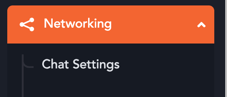
Navigate to Networking from the left-side menu.
-
Open Chat Settings.
-
Under the General Settings tab, locate the option called Force Chat Reload.
-
Click the Force Chat Reload button.
What Happens When You Use Force Chat Reload?
-
The system will instantaneously reload chat for all users currently active on the event frontend.
-
Any updated chat configurations—such as permissions, UI visibility, chat behavior rules, or enabled/disabled channels—will now reflect for everyone right away.
-
A success message will appear to confirm that the refresh has been applied.
When to Use This Feature
Use Force Chat Reload when:
-
You have updated chat-related settings and want them applied immediately.
-
You want to ensure participants see new or revised chat configurations without needing to refresh manually.
-
You are troubleshooting chat behavior and want to reset the chat view for all users.