![vfairs-logo-landscape-white-3.png]](https://help.vfairs.com/hs-fs/hubfs/vfairs-logo-landscape-white-3.png?height=40&name=vfairs-logo-landscape-white-3.png)
Integration Flows Overview
vFairs provides dedicated workflows to fit different Zoho CRM modules and event objectives:
- vFairs Registration → Zoho Contact & Campaign Upsert
Creates or updates Zoho Contact records from vFairs registrations and automatically adds them to your designated Campaign for event tracking, ROI analysis, and account-based reporting. - vFairs Registration → Zoho Contact Upsert
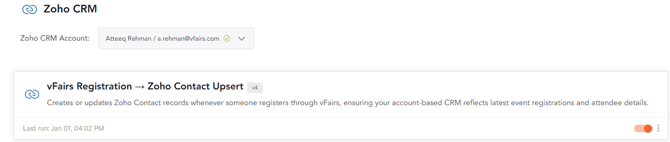
Creates or updates Zoho Contact records whenever someone registers through vFairs, ensuring your account-based CRM reflects latest event registrations and attendee details. - vFairs Registration → Zoho Lead & Campaign Upsert
Creates or updates Zoho Lead records from vFairs registrations and enrolls them in your selected Campaign for automated nurturing and pipeline progression. - vFairs Registration → Zoho Lead Upsert
Creates or updates Zoho Lead records from vFairs registrations, capturing new prospects directly into your sales pipeline with complete event context. - Zoho Contact Create → vFairs Attendee Upsert
Creates or updates vFairs attendees whenever a new Zoho Contact is created, automatically populating your event with known accounts from CRM for targeted engagement. - Zoho Lead Create → vFairs Attendee Upsert
Creates or updates vFairs attendees whenever a new Zoho Lead is created, bringing sales prospects from your pipeline into events for conversion tracking.
Note: Flows operate independently but share the same Zoho connection. You can enable multiple flows concurrently for comprehensive coverage across registration and CRM‑originated updates.
Which Flow Should You Use?
Choose flows based on your audience, data model, and reporting needs:
- Account‑Based Events (existing customers or named accounts)
- Use Contact Upsert or Contact & Campaign Upsert.
- If you need campaign attribution, prefer Contact & Campaign Upsert.
- Prospecting / Lead Generation Events
- Use Lead Upsert or Lead & Campaign Upsert.
- For automated nurture journeys and performance tracking, choose Lead & Campaign Upsert.
- Hybrid Programs (in‑person + virtual + CRM‑seeded)
- Combine Registration → Lead/Contact flows with Zoho Create → vFairs Attendee Upsert flows to keep rosters synced both ways.
Multi‑flow tip: Keep email mapping consistent across all flows to prevent duplicates when the same person enters via different paths.
Prerequisites and Field Planning
Prepare both systems before configuration:
- Identify sync fields (vFairs → Zoho)
- Core: First Name, Last Name, Email, Company, Job Title, Phone, Country, Registration Date, Ticket Type.
- Custom: Session interests, dietary needs, badge type, UTM parameters, etc.
- vFairs setup
- Use Form Builder to ensure registration fields exist and match the data you’ll send to Zoho.
- Normalize picklist values where possible (e.g., Country, Ticket Type).
- Zoho CRM setup
- Confirm/enable fields on Lead and Contact modules; create custom fields if needed.
- Create/identify target Campaign(s) in advance for Campaign flows.
- Review field‑level security (FLS), mandatory fields (e.g., Last Name in Leads/Contacts), and validation rules that could block record creation.
- Decide your dedupe key (commonly Email) and whether Zoho’s builtin duplicate rules should block, warn, or allow upserts.
Accessing the Integrations Dashboard
Follow these steps in your vFairs event backend:
- Log in as an administrator with integration permissions.
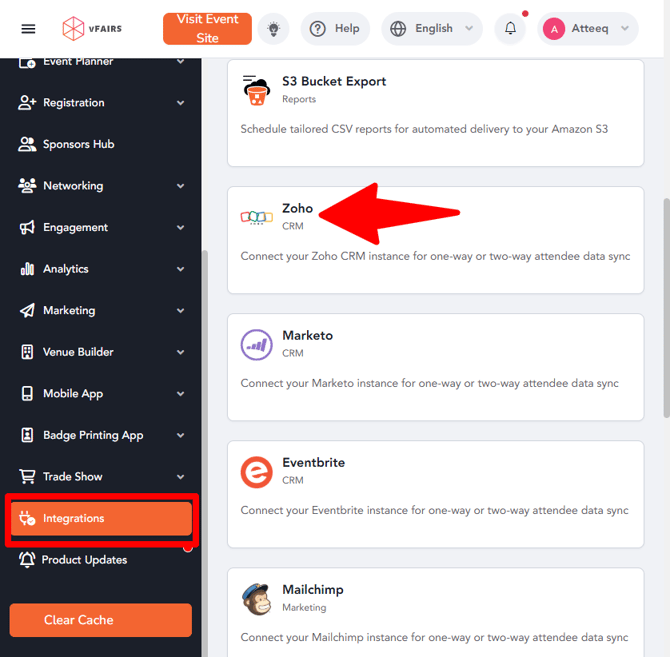
- In the left navigation menu, scroll to the bottom and click Integrations.
- Browse the available apps list and locate Zoho
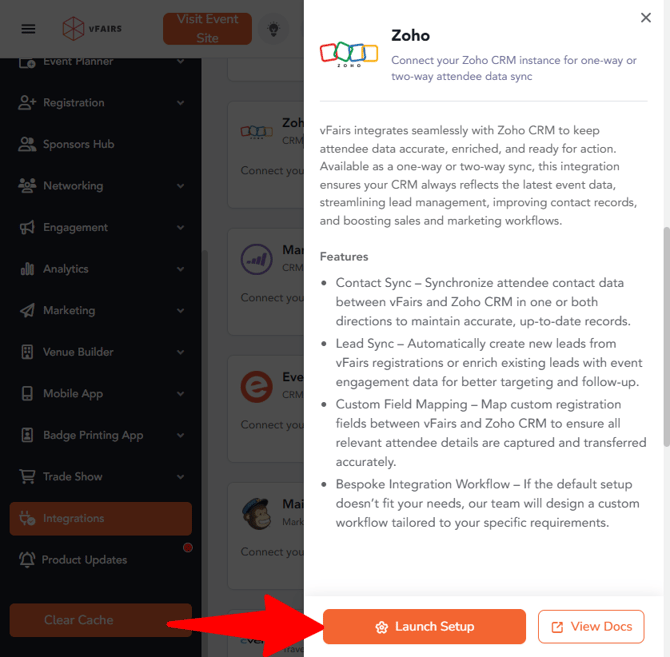
- Click View Setup (or Launch Setup for first-time connection).
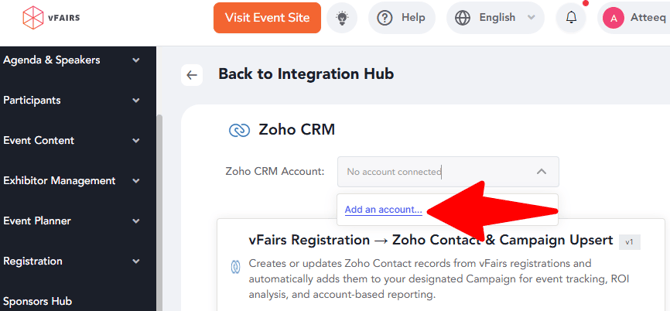
- If you haven’t connected a Salesforce account yet, Click on Add an account option from Zoho Account dropdown.
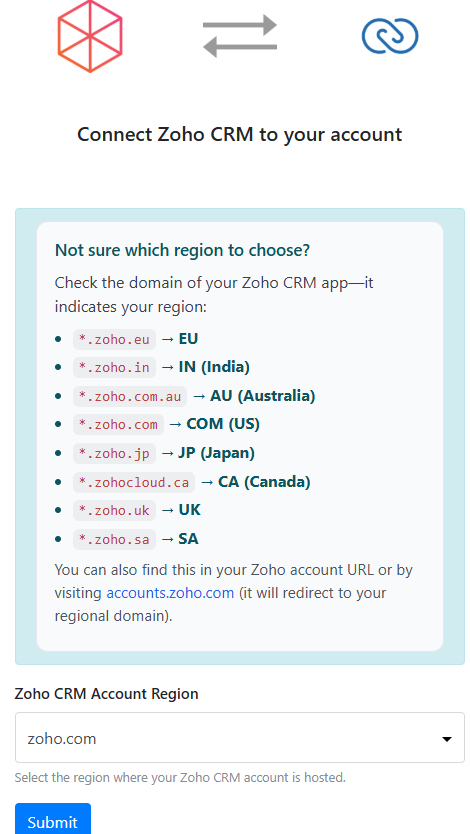
- Select Your Relevant Domain and Submit.
- Select the Production or Sandbox environment according to your plan.
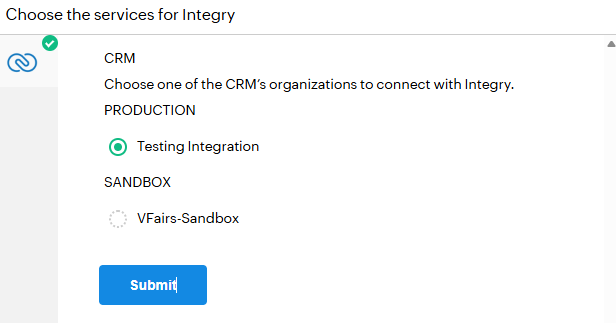
- Complete any two-factor authentication, and authorize access.
Selecting and Enabling a Flow
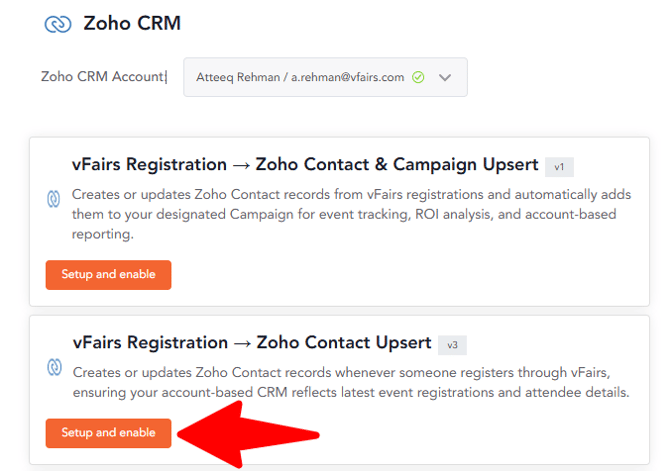
- Review the available Zoho flows listed in the overview.
- Click Setup and Enable beside your target flow.
Mapping Fields Between vFairs and Zoho CRM
- Click Next to proceed to field mapping.
- All vFairs → Zoho flows: Map vFairs registration/capture fields (source) → Zoho Lead or Contact fields (destination).
- Zoho → vFairs flows: Map Zoho fields (source) → vFairs Attendee fields (destination).
- Email as External ID: Map Email as the primary identifier for upsert behavior (update if exists, create if new).
- Mandatory Fields: Zoho often requires Last Name (Leads/Contacts) and sometimes Company for Leads—map these to avoid failures.
- Data Types: Match text ↔ text, picklist ↔ picklist, date ↔ date/time.
- Picklists: Align vFairs picklist values to Zoho’s allowed values (or use transformation rules if available).
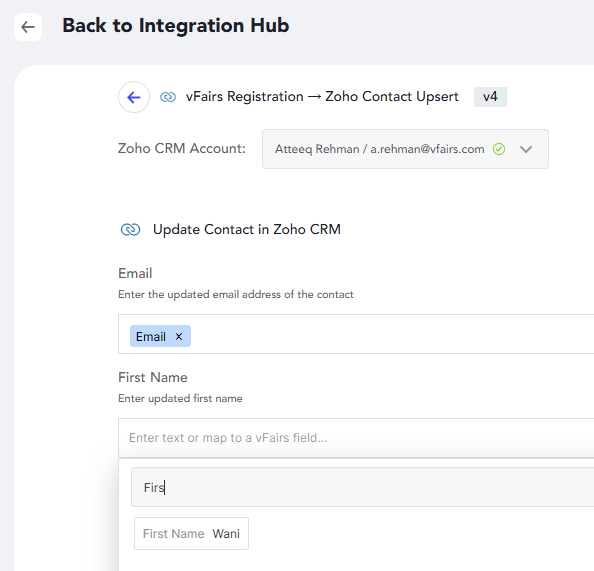
- Complete mapping → Next → Click → Save.
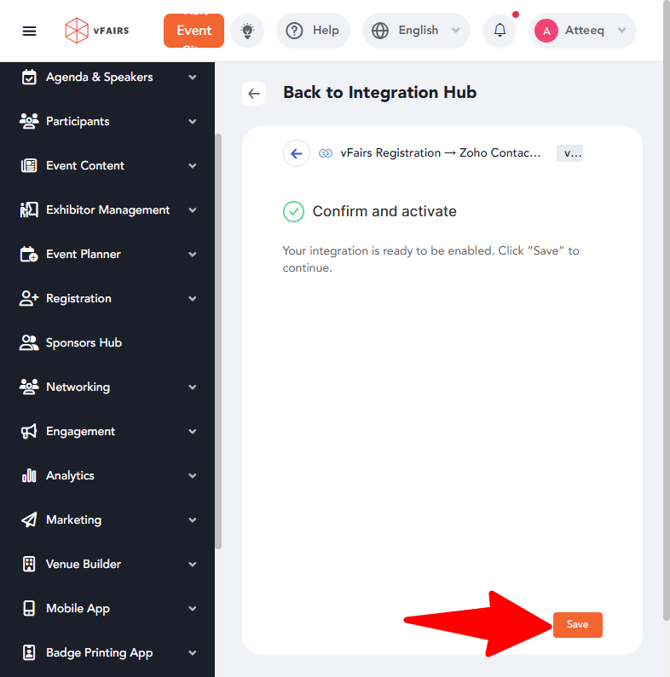
- Click Nex
Testing the Integration
Test methodology (one flow at a time):
- Enable only your test flow to isolate behavior.
- Trigger the flow:
- Registration flows: Submit a test registration in vFairs (use a new email).
- Zoho → vFairs flows: Create a test Lead/Contact in Zoho with the mapped fields.
- Verify in Zoho CRM:
- Check Leads or Contacts for new/updated records.
- Confirm all mapped fields are populated correctly.
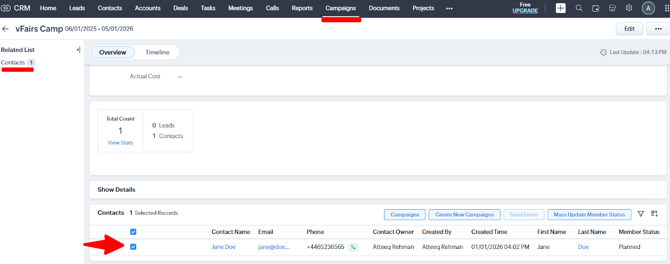
- For Campaign flows: Verify Campaign Member entry exists for the chosen Campaign.
- Test updates (upsert): Modify a mapped field in vFairs (or Zoho for reverse flows) and ensure the corresponding system reflects the change.
- Edge cases:
- Existing email (upsert vs. create)
- Invalid picklist values
- Missing mandatory fields
- Owner assignment and permissions
Success criteria: Clean record creation/updates with 100% field accuracy and correct Campaign membership.
Managing Multiple Flows and Avoiding Duplicates
- Standardize the dedupe key: Use Email consistently across all flows.
- Module awareness: Don’t create the same person as both Lead and Contact unless your process requires it; otherwise prefer a single module for consistency.
- Zoho duplicate rules: Align vFairs upsert logic with Zoho’s duplicate settings (block/warn/allow) to prevent unexpected failures.
- Campaign membership: For flows with Campaigns, ensure Campaign is correctly selected per flow; avoid adding the same record to multiple campaigns unless intended.
- Staged rollout: Enable and validate flows progressively (e.g., start with Lead Upsert, then add Lead & Campaign).
Troubleshooting and Maintenance
Common Issues & Fixes
|
Issue |
Likely Cause |
Solution |
|
No records created |
Flow disabled; auth expired |
Verify flow status, confirm the correct vFairs form is triggering, re‑authorize Zoho if needed |
|
Field data missing |
Mapping mismatch; FLS restrictions; mandatory field not mapped |
Re‑check mappings, fix picklist values, review Zoho field‑level security and required fields |
|
Duplicates created |
Email not mapped consistently; conflicting dedupe rules |
Standardize Email mapping; review Zoho duplicate rule behavior; use upsert keys uniformly |
|
Campaign not populating |
Wrong Campaign selection or permissions |
Verify Campaign selection and access; ensure module compatibility |
|
Validation errors |
Zoho validation rules/blueprints blocking insert |
Temporarily relax rules, add required fields, or handle with pre‑validation in vFairs |
|
Owner assignment wrong |
Owner field not set/mapped |
Map Owner or set default owner in integration settings |
- If you have any additional questions or need further assistance, please don't hesitate to reach out to our integration team at Email To Integrations Team