![vfairs-logo-landscape-white-3.png]](https://help.vfairs.com/hs-fs/hubfs/vfairs-logo-landscape-white-3.png?height=40&name=vfairs-logo-landscape-white-3.png)
Integration Flows Overview
vFairs provides specialized workflows to match your event marketing and automation needs:
1. ActiveCampaign List Add Contact → vFairs Attendee Upsert
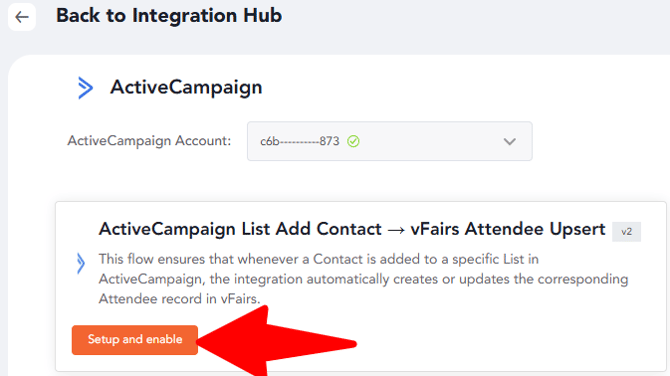
This flow ensures that whenever a Contact is added to a specific List in ActiveCampaign, the integration automatically creates or updates the corresponding Attendee record in vFairs.
- Use Case: Ideal for managing event access directly from your CRM. Simply adding a user to an "Event Registered" list in ActiveCampaign will automatically register them for the event in vFairs.
2. vFairs Attendee Registration → ActiveCampaign Contact Upsert
This flow automatically creates or updates an ActiveCampaign Contact whenever someone registers through vFairs. It ensures registrant details are synced in real time for marketing automation.
- Use Case: Perfect for capturing new leads from event signups and immediately triggering welcome emails or nurture sequences in ActiveCampaign.
Prerequisites and Field Planning
Prepare both systems before starting the configuration:
- Identify sync fields: Identify which fields need to move between systems (e.g., first name, last name, email, company, job title, phone, and country).
- vFairs setup: Use the Form Builder to create or verify that your registration fields match your ActiveCampaign schema.
- ActiveCampaign setup: * Confirm Contact fields exist or create custom fields to store specific event data.
- For the inbound flow (ActiveCampaign to vFairs), ensure you have created the specific List that will act as the trigger.
Accessing the Integrations Dashboard
Follow these steps in your vFairs event backend:
- Log in as an administrator to the event backend.
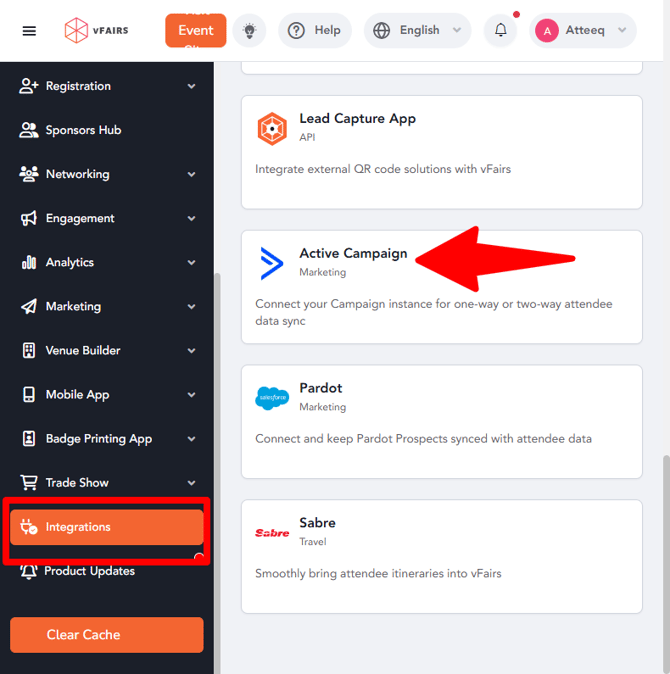
- In the left navigation menu, scroll to the bottom and click Integrations.
- Browse the available apps list and locate ActiveCampaign.
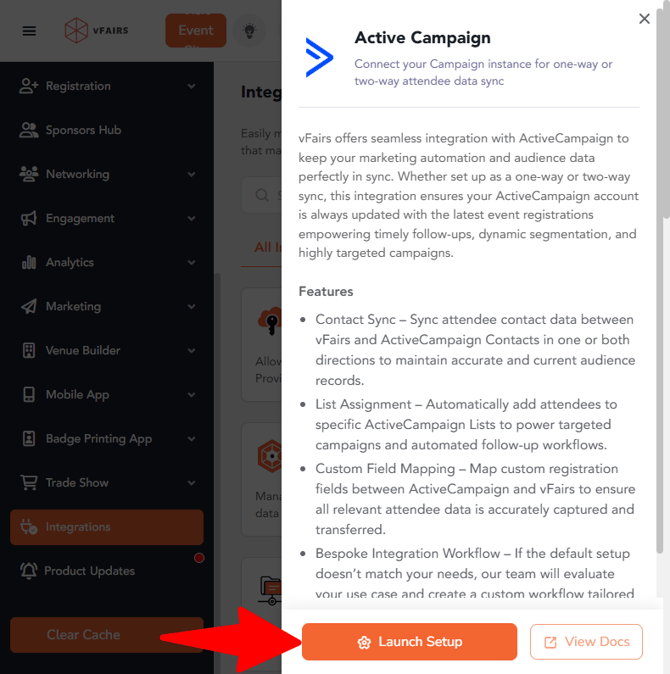
- Click View Setup (or Launch Setup if this is your first time connecting).
Connecting Your Account
If you haven't connected an ActiveCampaign account yet, click the Add an account option from the account dropdown.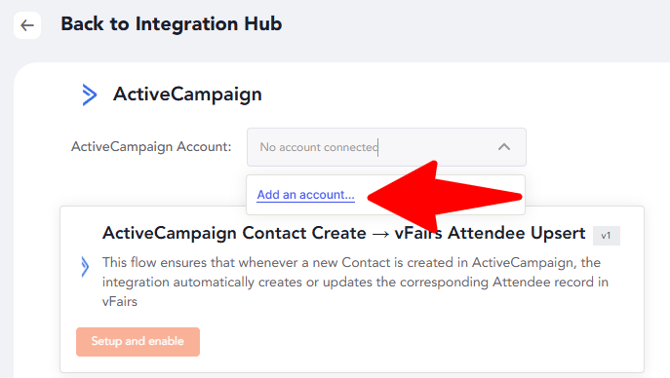
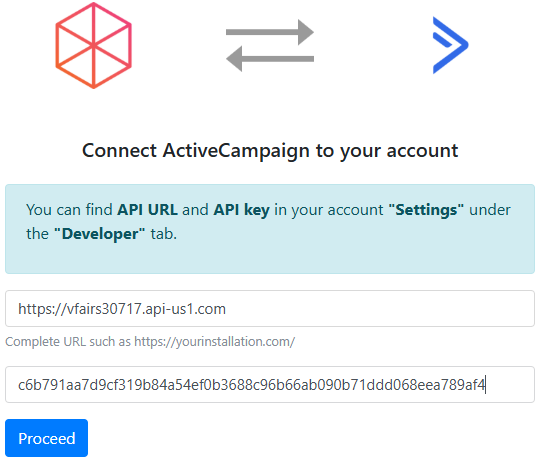
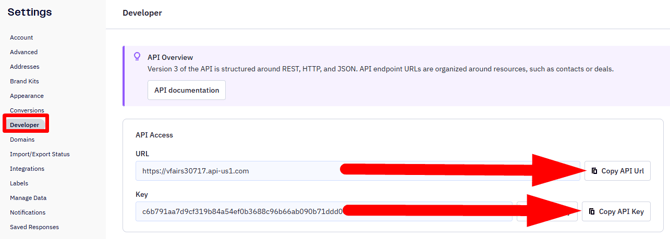
API URL and API Key are found in your ActiveCampaign Developer settings.
Selecting and Enabling a Flow
Once the account is connected:
- Review the complete list of available ActiveCampaign flows shown in the overview.
- Click Setup and Enable next to the specific flow you wish to activate.
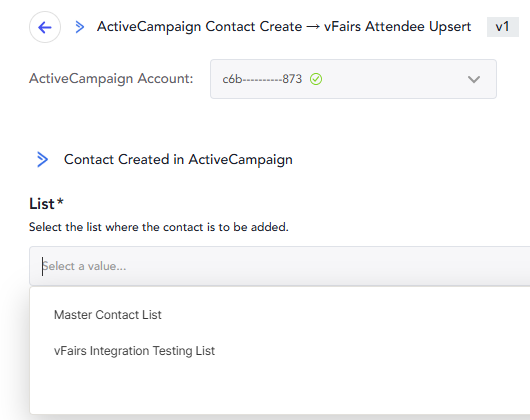
- Choose List: For flows involving ActiveCampaign Lists, a dropdown will appear. Select the specific List.
- Click Next to proceed to field mapping.
Mapping Fields Between vFairs and ActiveCampaign
Field mapping ensures data is placed in the correct corresponding fields in the destination system.
Mapping Best Practices:
- Email as External ID: Always map the Email field as the primary identifier. This allows for "upsert" functionality (updating a record if it exists or creating a new one if it does not).
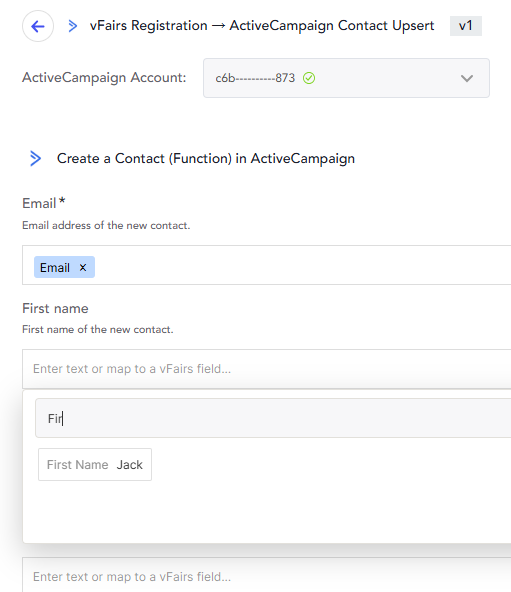
- Required Fields: Ensure all fields marked as "Required" in ActiveCampaign or vFairs are mapped to avoid record creation failures.
- Data Types: Match text fields to text fields, and ensure picklist/dropdown values match exactly between both systems.
After selecting your fields, click Save to activate the flow.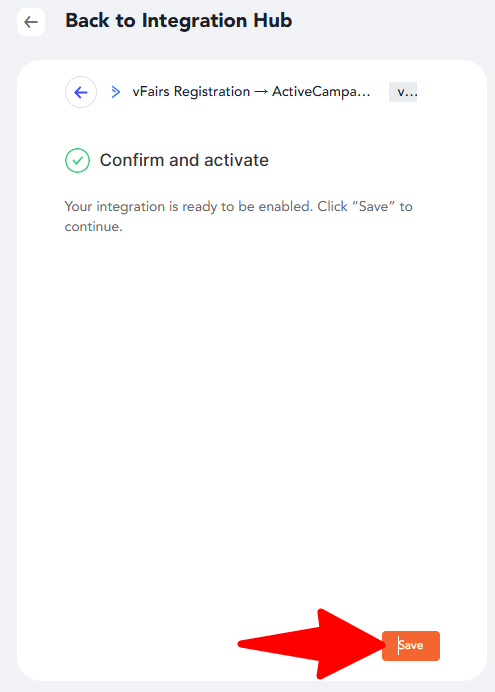
Testing the Integration
Test each flow individually to verify the connection:
- Enable only the specific flow you are testing to isolate results.
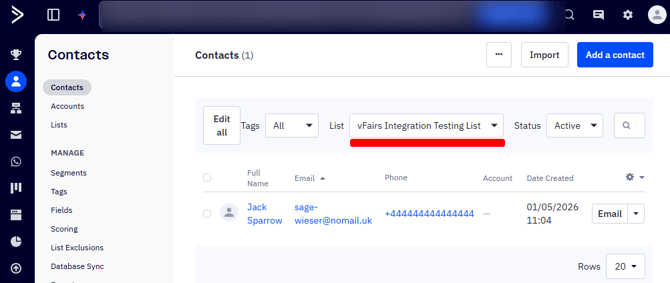
- Trigger the action: * For vFairs to ActiveCampaign: Submit a test registration on your vFairs landing page using a unique email address.
- For ActiveCampaign to vFairs: Create a new contact in ActiveCampaign and manually add them to the designated List.
- Verify Results: * Check the destination system to ensure the record appears within a few moments.
- Confirm that all mapped data (Company, Job Title, etc.) is accurate.
- Success Criteria: The integration is successful when records are created/updated with 100% field accuracy.
Troubleshooting and Maintenance
|
Issue |
Likely Cause |
Solution |
|
No records created |
Flow is disabled or wrong List selected |
Verify flow status is "Enabled" and the correct trigger List is chosen. |
|
Field data missing |
Mapping error or field permissions |
Re-check mappings; ensure the API user has permission to write to those fields. |
|
Duplicates created |
Email not mapped as the unique ID |
Ensure Email is mapped consistently across all active flows. |
If you have any additional questions or need further assistance, please don't hesitate to reach out to our integration team at Email To Integrations Team