![vfairs-logo-landscape-white-3.png]](https://help.vfairs.com/hs-fs/hubfs/vfairs-logo-landscape-white-3.png?height=40&name=vfairs-logo-landscape-white-3.png)
Integration Flows Overview
vFairs offers multiple predefined workflows between HubSpot and your event:
- HubSpot Contact Upsert → vFairs Attendee Upsert
Creates or updates a vFairs attendee whenever a HubSpot contact is created or modified, so event data reflects the latest CRM information. - HubSpot Form Submission → vFairs Attendee Create
Creates a new vFairs attendee whenever a mapped HubSpot form is submitted, ideal when you use HubSpot forms as your primary registration method. - HubSpot List Add Contact → vFairs Attendee Upsert
Adds or updates attendees in vFairs when a contact is added to a specific HubSpot list, useful for segment‑based event invitations or eligibility. - HubSpot List Update Contact → vFairs Attendee Upsert
Adds or Updates attendee details in vFairs whenever a contact in the specified HubSpot list is updated, keeping event rosters aligned with CRM segments. - vFairs Attendee Registration → HubSpot Contact Upsert
Creates or updates a HubSpot contact whenever an attendee registers in vFairs and optionally adds them to a designated HubSpot list for follow‑up campaigns.
Which Flow Should You Use?
Use this section to decide which flows to enable for your event:
- If HubSpot is your system of record
- Use HubSpot Contact Change → vFairs Attendee Upsert to continuously mirror key contact fields from HubSpot into vFairs.
- Use the List Add and List Update flows when access to the event should be based on membership in specific HubSpot lists (e.g., VIP list, paid participants).
- Use HubSpot Contact Change → vFairs Attendee Upsert to continuously mirror key contact fields from HubSpot into vFairs.
- If vFairs registration drives your marketing
- Use vFairs Attendee Registration → HubSpot Contact Upsert to ensure every registrant becomes or updates a contact in HubSpot.
- Combine this with automatic list assignment in HubSpot so new registrants immediately enter your nurture workflows and email campaigns.
- Use vFairs Attendee Registration → HubSpot Contact Upsert to ensure every registrant becomes or updates a contact in HubSpot.
- If you rely on HubSpot forms for signup
- Use HubSpot Form Submission → vFairs Attendee Create to treat HubSpot form submissions as registrations in vFairs while keeping event access controlled on the vFairs side.
- Use HubSpot Form Submission → vFairs Attendee Create to treat HubSpot form submissions as registrations in vFairs while keeping event access controlled on the vFairs side.
You can enable more than one flow at the same time, but be sure they all use the same unique identifier (email) to avoid duplicate attendees or contacts.
Prerequisites and Field Planning
Before configuring any flow:
- Identify the key attendee fields you want to sync (for example: first name, last name, email, company, job title, phone, country etc).
- Create corresponding fields in both systems:
- In vFairs, use the Form Builder to set up registration fields.
- In HubSpot, create or confirm the contact properties you plan to map.
- In vFairs, use the Form Builder to set up registration fields.
Accessing the Integrations Dashboard
Follow these steps inside your vFairs event:
- Log in to your event backend as an Administrator or Event Owner.
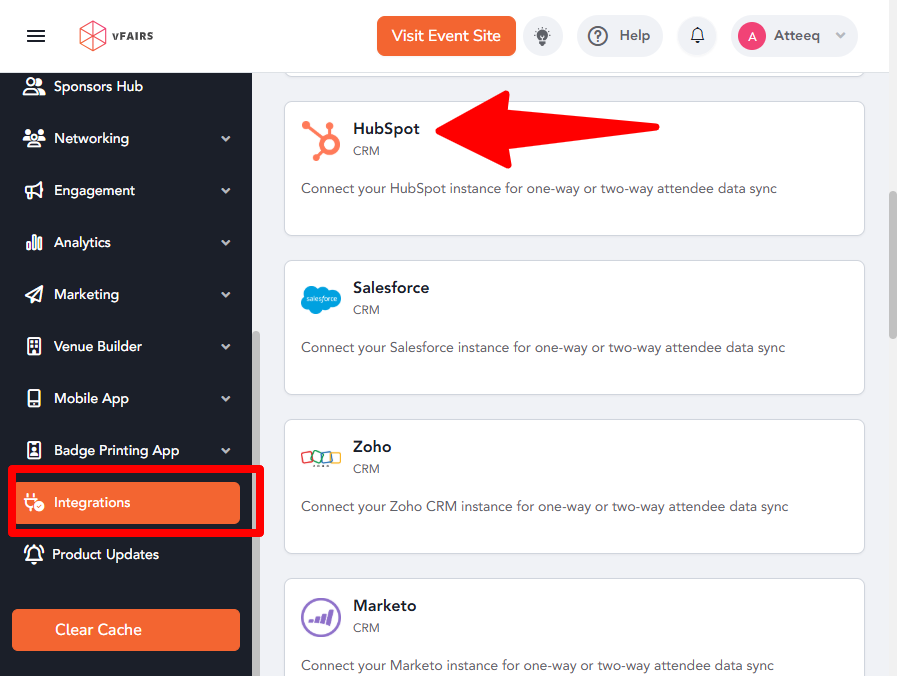
- In the left navigation menu, scroll down and click Integrations.
- In the Integrations dashboard, browse the list of available apps.
- Select HubSpot and click Configure to open the HubSpot integration setup.
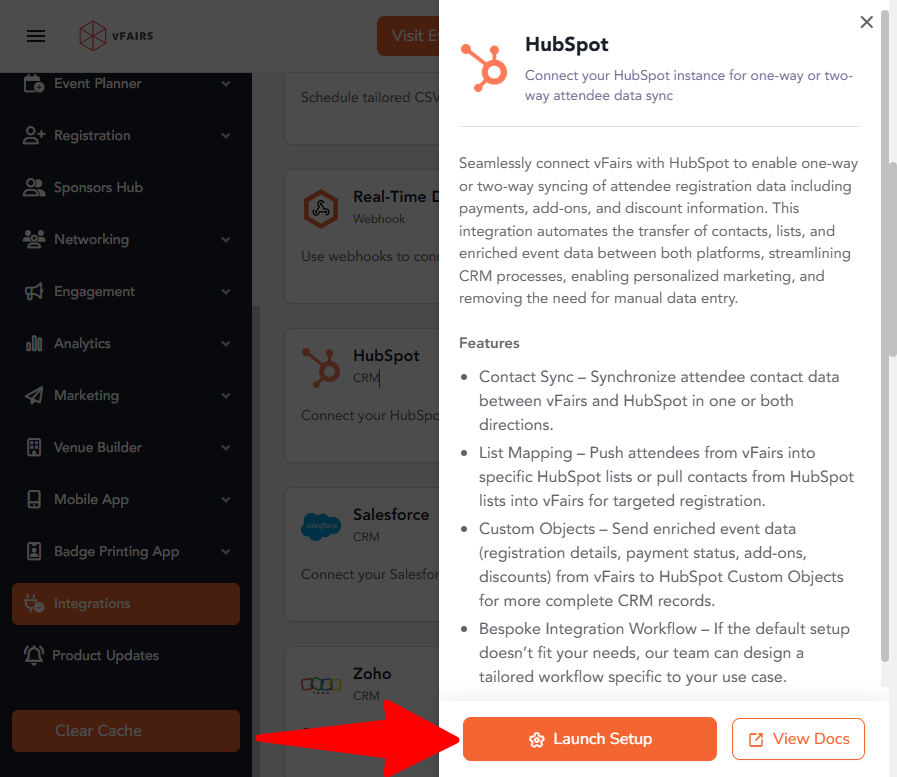
- Click Launch Setup to open the HubSpot integration setup.
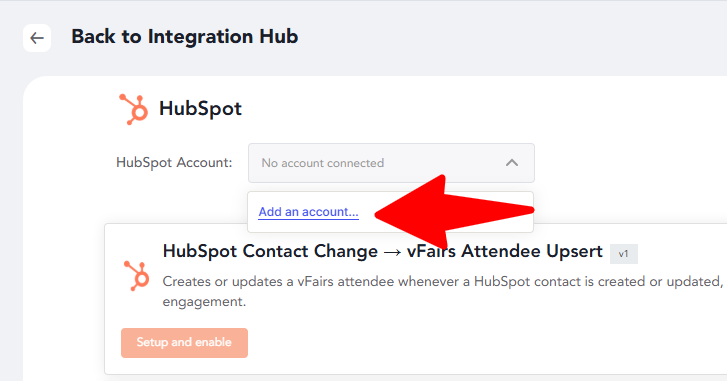
- If you haven’t connected a HubSpot account yet, Click on Add an account option from HubSpot Account dropdown.
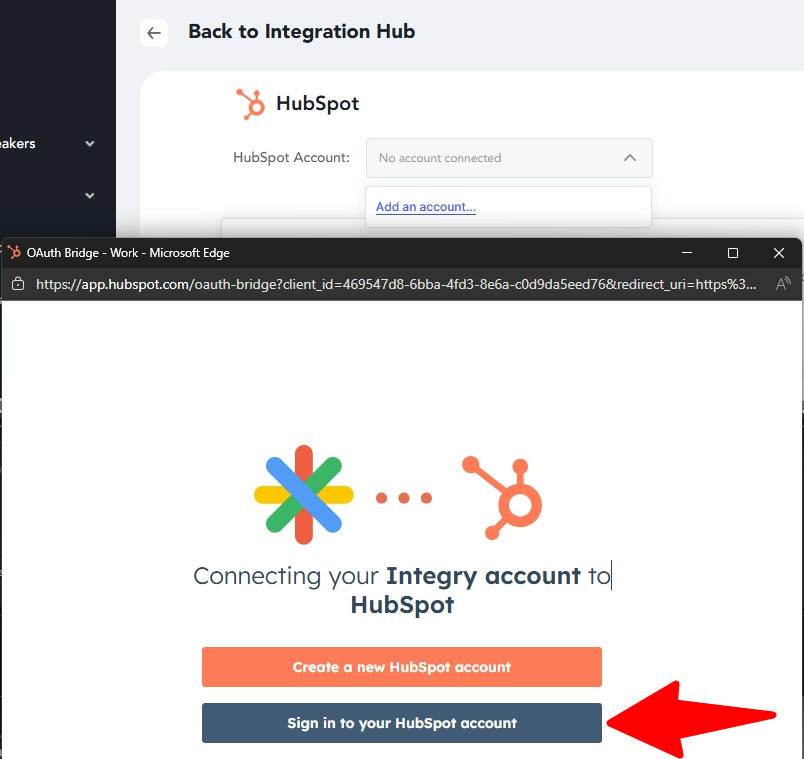
- You will be prompted to sign in to HubSpot, complete any two‑factor authentication, and choose the correct HubSpot account.
Selecting and Enabling a Flow
Once your HubSpot account is connected:
- You will see a list of available HubSpot–vFairs flows matching the ones described in the overview.
- Your Custom Workflow will appear along with the above list.
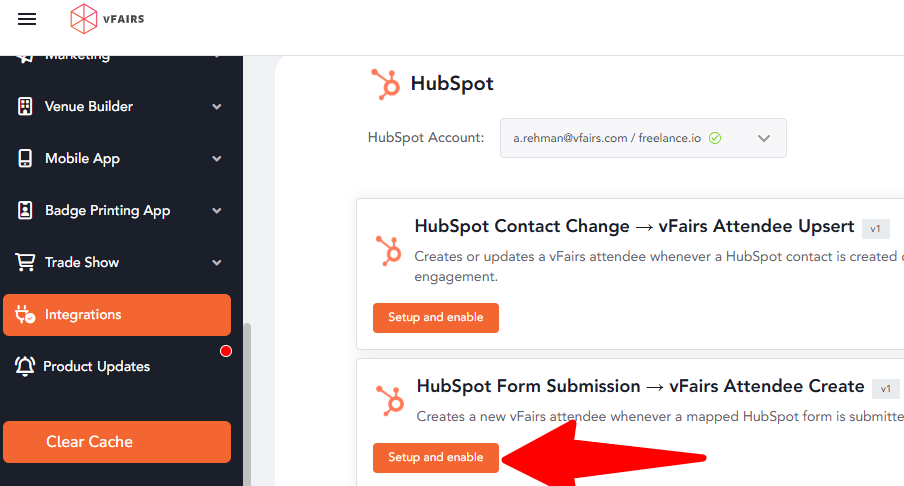
- Locate the flow you want to configure (for example, “HubSpot Form Submission → vFairs Attendee Create”).
- Click Setup and enable that flow. Example HubSpot Form Submission
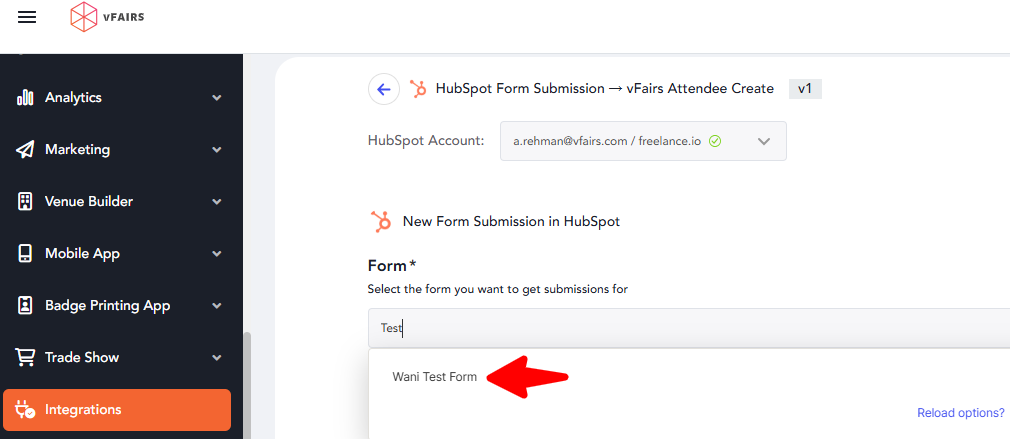
- On the first screen, you will see a Form* dropdown asking select the form you want to get submissions for:
- Choose Submission Form to allow the integration to access new records as attendee data.
- Click Next to move to the field‑mapping step.
Mapping Fields Between vFairs and HubSpot
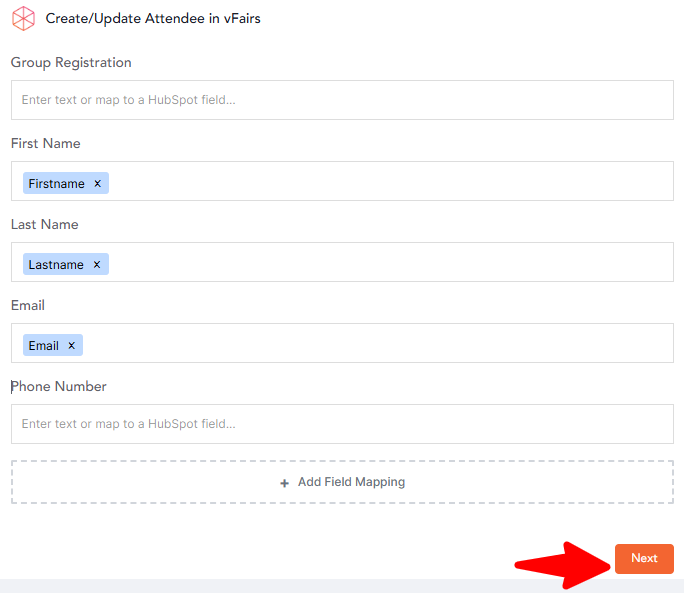
The field‑mapping screen controls which data is passed and in which direction. The layout may differ slightly depending on the selected flow, but the concepts are the same.
General mapping rules
- For HubSpot → vFairs flows (for example, Contact Change, List Add, List Update, Form Submission):
- Select a HubSpot contact property on one side.
- Map it to the corresponding vFairs registration/attendee field on the other side.
- Select a HubSpot contact property on one side.
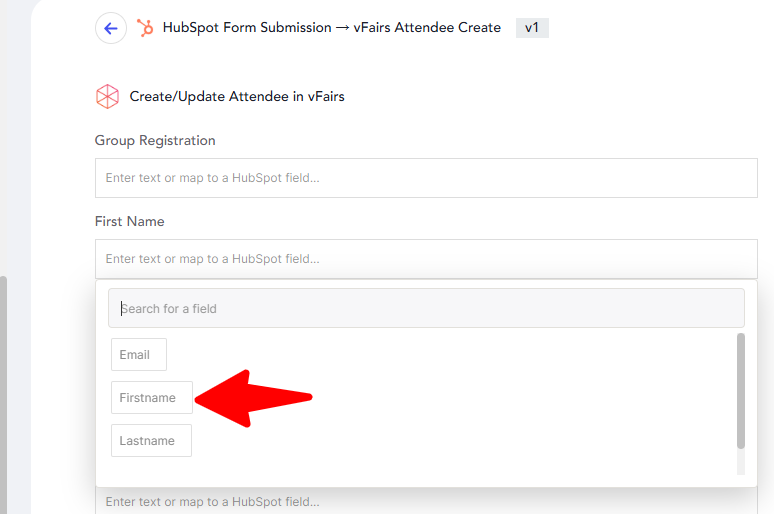
- When the trigger occurs, values from HubSpot are written into vFairs.
- For vFairs → HubSpot flows (for example, Attendee Registration):
- Select a vFairs registration field.
- Map it to the relevant HubSpot contact property.
- When an attendee registers, vFairs values are written into HubSpot.
- Select a vFairs registration field.
Best‑practice tips for mapping
- Always map a unique identifier, usually the email field, on both sides. This allows “Upsert” behavior:
- If a record with the same email exists, it is updated.
- If not, a new attendee/contact is created.
- If a record with the same email exists, it is updated.
- Start with a minimal set of fields (name, email, company, role) for your first test, then add more mappings once the basics are working.
- Avoid mapping the same field in conflicting directions across different flows unless you are certain which system should win in a conflict.
After completing your mappings:
- Scroll to the bottom of the page.
- If the flow supports adding contacts to a HubSpot list (for example, when vFairs creates or updates contacts), select the appropriate list.
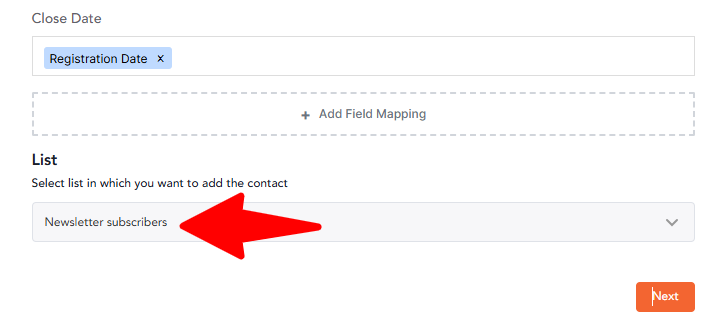
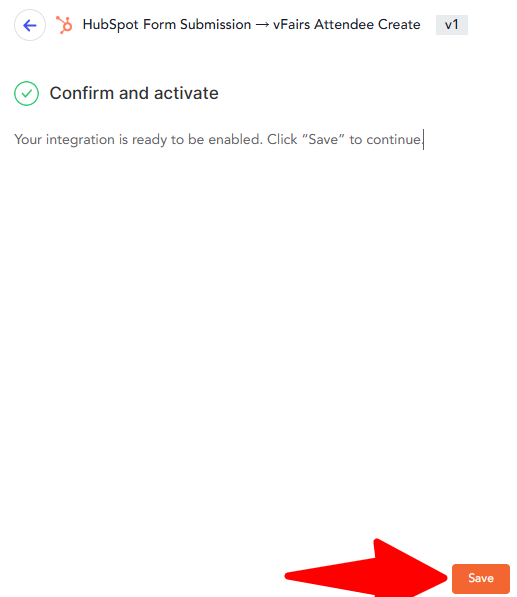
- Click Next, and then click Save.
Testing the Integration
Before going live with real attendees, run a quick test:
- Enable one flow at a time (for example, start with vFairs Attendee Registration → HubSpot Contact Upsert).
- Create a test record:
- If testing a vFairs→HubSpot flow, submit a test registration through your vFairs registration form.
- If testing a HubSpot→vFairs flow, either update a test contact, submit a HubSpot form, or add a test contact to the configured list.
- If testing a vFairs→HubSpot flow, submit a test registration through your vFairs registration form.
- Verify that the new or updated record appears in the destination system with the correct values in all mapped fields.
- Update a mapped field in the source system and confirm that the change is reflected in the destination system, if you enable updates.
- Once the test passes, repeat for any other flows you plan to use.
Managing Multiple Flows and Avoiding Duplicates
When using several flows together, keep these points in mind:
- Make sure email (or your chosen unique field) is mapped consistently across all flows. This prevents duplicate attendees or contacts when the same person is touched by multiple triggers.
- If you operate segmented events or multiple campaigns, use separate HubSpot lists per event and clearly note which list each flow uses.
Troubleshooting and Maintenance
If something doesn’t sync as expected:
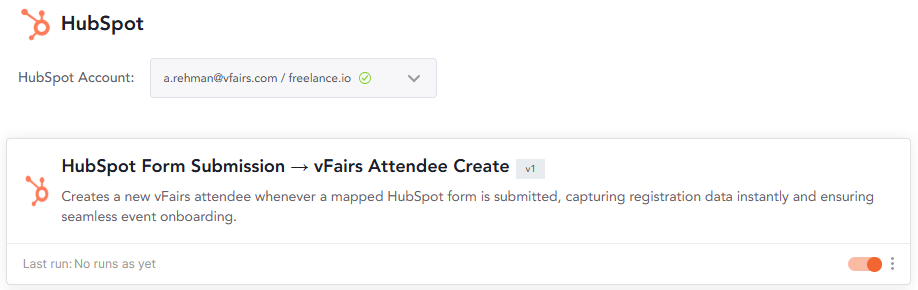
- Confirm that the flow is enabled and saved.
- Double‑check field mappings for typos or mismatched field types (for example, mapping a text field to a dropdown with incompatible values).
- Verify that the triggering action actually occurred (for example, contact added to the correct list, form submission from the correct form, registration on the correct vFairs event).
- Test with a brand‑new email address to rule out issues caused by existing data or previous mappings.
- If you have any additional questions or need further assistance, please don't hesitate to reach out to our integration team at Email To Integrations Team