Table of Contents
- Prerequisites
- Accessing Admin Check-In
- Checking In an Attendee
- Checking Out an Attendee
- Viewing Check-In and Check-Out Reports
Prerequisites
To use this feature, you must be assigned one of the following event roles:
- Event Owner
- Event Admin
The Admin Section must also be enabled for the event.
To learn more, refer to the following article:
What is the Admin Section in the Mobile App and How to Configure It
Accessing Admin Check-In
- Log in to the vFairs Mobile App using your admin credentials.
- Open the Menu screen.
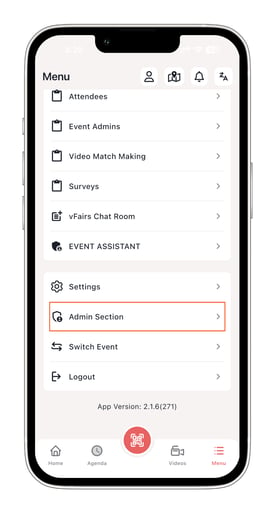
- Tap Admin Section.
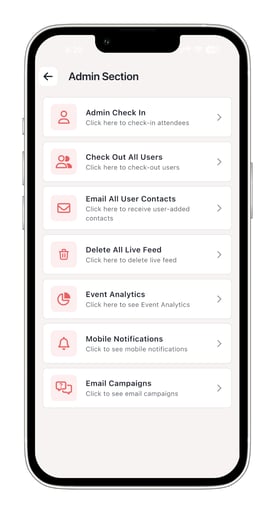
- Select Admin Check-In.
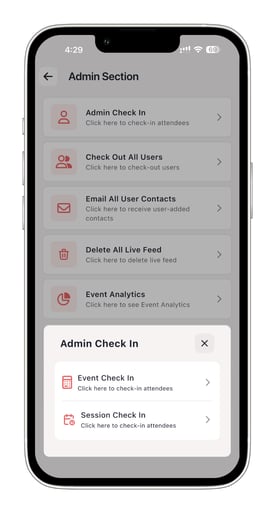
You will see two options:
- Event Check-In
- Session Check-In
This article covers Event Check-In.
To learn about session-level attendance tracking, refer to:
How to Enable Session Check-Ins in the vFairs Onsite App
Checking In an Attendee
- Tap Event Check-In.
- A QR code scanner will open.
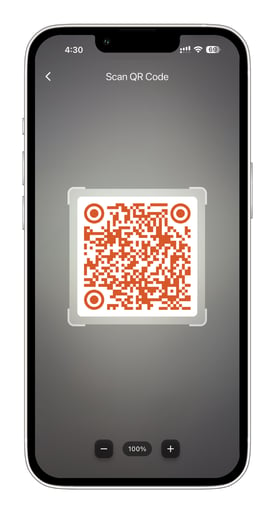
- Scan the attendee's QR code.
The attendee's profile will open automatically.
- Tap the Check In button.
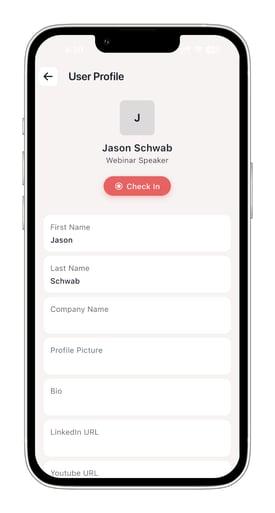
The attendee will be checked into the event immediately.
Checking Out an Attendee
Once an attendee has been checked in, the Check In button changes to Check Out.
- Open the attendee's profile.
- Tap Check Out.
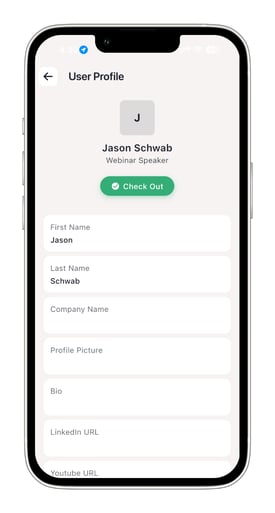
The attendee will be checked out of the event immediately.
This allows event staff to accurately track attendee entry and exit throughout the event.
Viewing Check-In and Check-Out Reports
A detailed record of all attendee check-ins and check-outs is available in the Event Backend.
To access the report:
- Go to Analytics.
- Open Post Event Reports.
- Locate the Report Type dropdown.
- Select Check-In & Check-Out Detailed Report.
-png.png?width=573&height=325&name=Untitled%20design%20(1)-png.png)
This report includes:
- Attendee details
- Check-in date and time
- Check-out date and time
- The admin who performed the action
- Additional attendance tracking information
This report can be used for attendance auditing, compliance requirements, and post-event analysis.
Conclusion
The Admin Check-In feature makes it easy for Event Owners and Event Admins to manage attendee attendance directly from the mobile app. Whether checking attendees in as they arrive or checking them out when they leave, all actions are automatically tracked and available through detailed backend reporting.