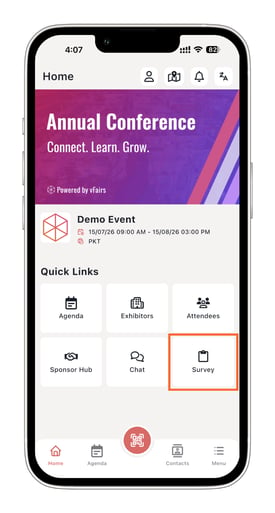
Table of Contents
Adding the Survey Menu Item
- Log in to your Event Backend.
- Navigate to Mobile App → App Builder.
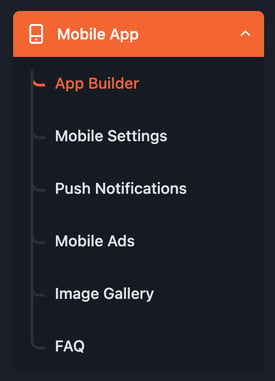
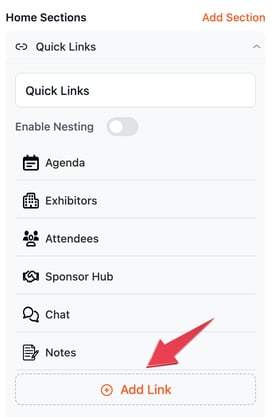
- In the right-hand editing panel, expand the Quick Links section.
- Click Add Link.
- In the menu item selection popup, search for Survey.
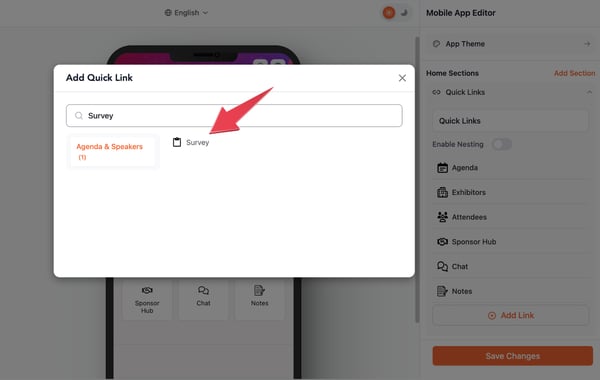
- Click Survey to add it to your Quick Links.
Once the Survey menu item is added, its settings panel will open on the right.
Selecting a Survey
The Survey menu item must have a survey attached before it can be saved.
- In the Survey menu item's settings panel, locate the Choose Survey dropdown.
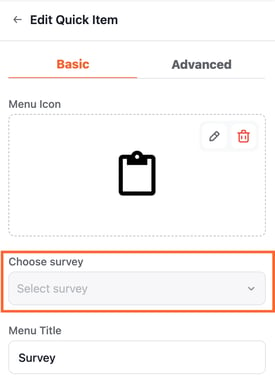
- Select the survey you want attendees to access from the mobile app.
- Click Save Changes.
If you have not created a survey yet, refer to:
How to Create and Manage Surveys
Note: The Survey menu item cannot be saved until a survey is selected.
Viewing the Survey in the Mobile App
Once the menu item has been configured and saved:
- Log in to the vFairs Mobile App using your attendee credentials.
- Locate the Survey menu item in the app.
- Tap the menu item to access the survey attached to it.