Table of Contents
- Prerequisite
- Accessing Segments
- Creating a Segment for Badge Printing
- Using Segments in Badge Designer
Prerequisite
Ensure the Badge Printing Module is enabled for your event.
Accessing Segments
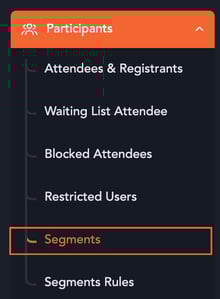
- From the event dashboard, go to Participants in the left navigation menu.
- Click Segments.
Creating a Segment for Badge Printing
- Click Create Segment.
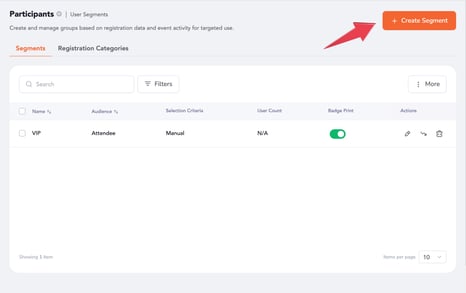
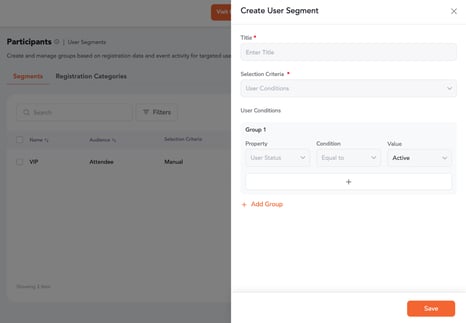
- Fill in the required segment details. To learn how to create and configure user segments, refer to the following article: How to Create and Manage User Segments
- Enable the toggle “Use this segment for Badge Printing”
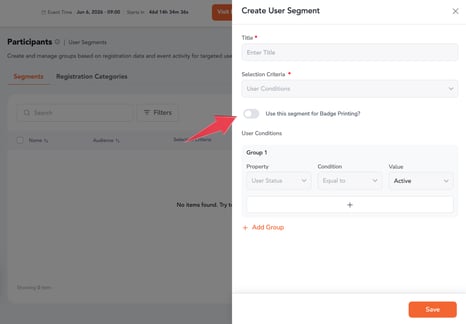
- Click Save.
Once enabled, the segment will be available in the Badge Designer, allowing you to customize badges for that specific group.
Using Segments in Badge Designer
After creating and enabling segments for badge printing:
- Go to Badge Designer.
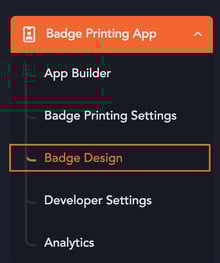
- Click the Visitor (or Attendee) tab.
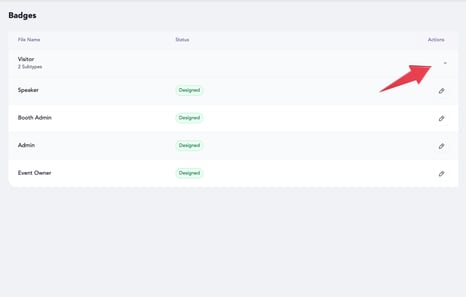
Behavior:
- If no segments are created, the default badge design will be applied to all attendees.
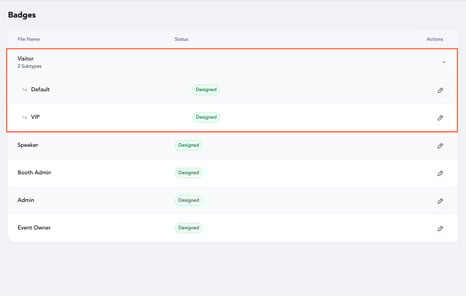
- If segments are created and enabled for badge printing:
- A dropdown will appear under the Visitor tab
-
- You can select a segment from the dropdown
-
- Each segment will have its own badge design
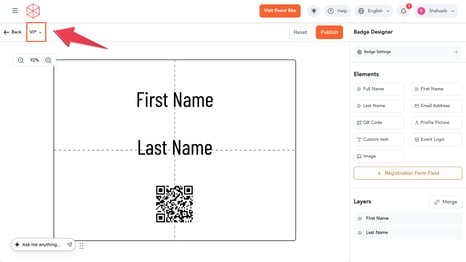
This allows you to customize badges for different attendee groups.