Table of Contents
Download the vFairs Onsite App
The vFairs Onsite App is available for both iOS and Android devices.
For iPhone and iPad (iOS)
You can install the app using any of the following methods:
- Search for vFairs Onsite on the Apple App Store.
- Open the App Store using the provided download link.
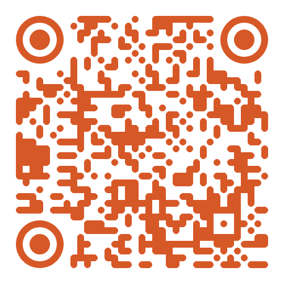
- Scan the iOS QR code to open the app listing directly.
For Android
You can install the app using any of the following methods:
- Search for vFairs Onsite on the Google Play Store.
- Open the Play Store using the provided download link.
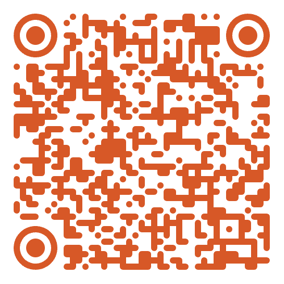
- Scan the Android QR code to open the app listing directly.
Log In to the Onsite App
- Open the vFairs Onsite app.
- Enter your email address.
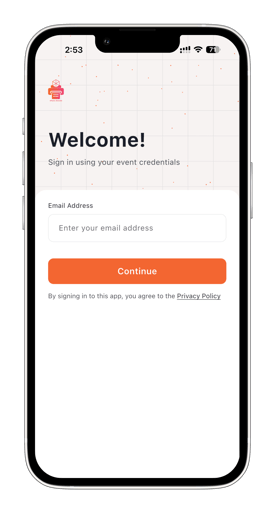
- If your email is associated with only one event, enter your password to log in.
- If your email is associated with multiple events, the app will display a list of those events.
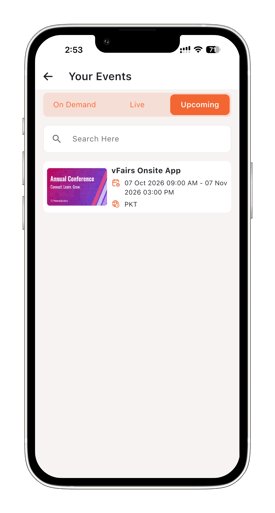
- Tap the event you want to access.
- Enter the password for that event.
-portrait-png.png?width=275&height=514&name=Untitled%20design%20(1)-portrait-png.png)
- Tap Continue to log in.
You will be taken to the Onsite App home screen after successful authentication.
Important Notes
- Only users with the Event Owner or Event Admin role can log in to the vFairs Onsite App.
- Other event roles, including Attendees, Speakers, Exhibitors, and Booth Users, cannot access the Onsite App.
- If you do not see your event after entering your email address, verify that your account has been added as an Event Owner or Event Admin for that event.