Table of Contents
- Prerequisites
- Accessing the Attendee Listing
- Generating Name Badges
- Downloading and Printing the Badge PDF
- Important Notes
Prerequisites
Before printing name badges from the backend:
- The Badge Printing module must be enabled for the event.
- Badge designs should be configured in the Badge Designer.
To learn how to design badges, refer to:
How to Use the Badge Designer to Design Name Badges for Attendees
Note: Even if you do not create a custom badge design, vFairs automatically provides a default badge template containing:
-
First Name
-
Last Name
-
QR Code
Accessing the Attendee Listing
- Log in to the Event Backend.
- Go to Participants from the left navigation menu.
- Click Attendees & Registrants.
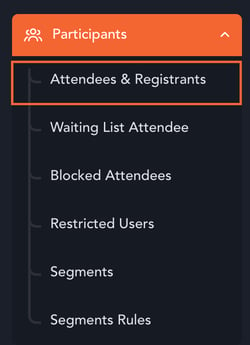
This will open the attendee listing screen.
Generating Name Badges
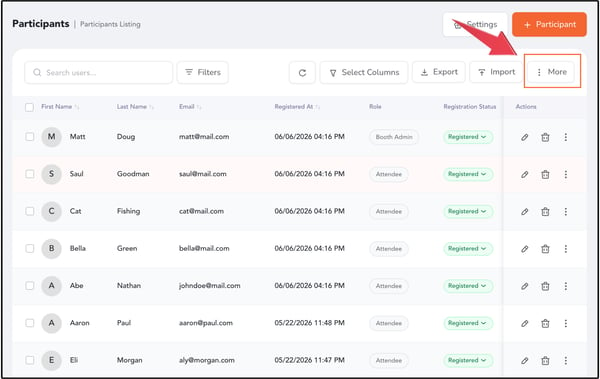
- Select the attendees whose badges you want to print.
- Click More from the action bar.
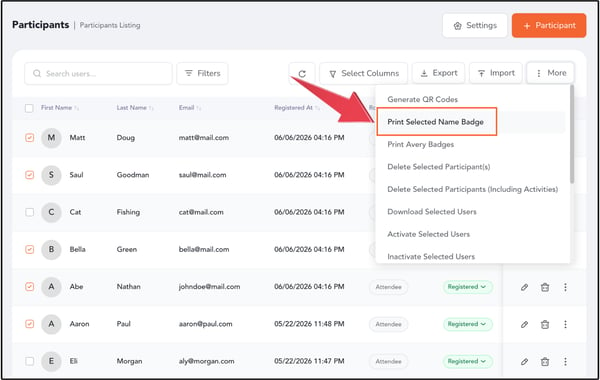
- Select Print Selected Name Badge.
A popup will appear displaying:
Generating Badges
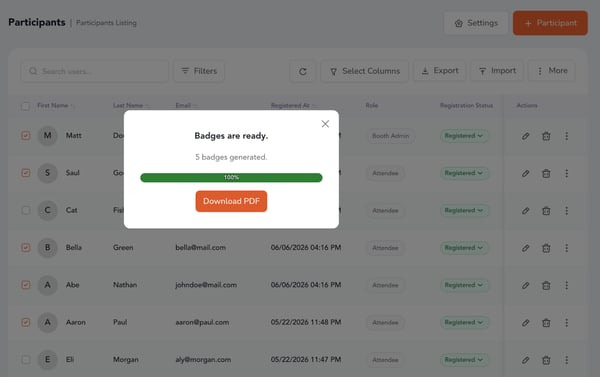
Badge generation time may vary depending on the number of selected attendees.
Downloading and Printing the Badge PDF
Once badge generation is complete:
- Click Download PDF.
- A new browser tab will open containing the generated badge PDF.
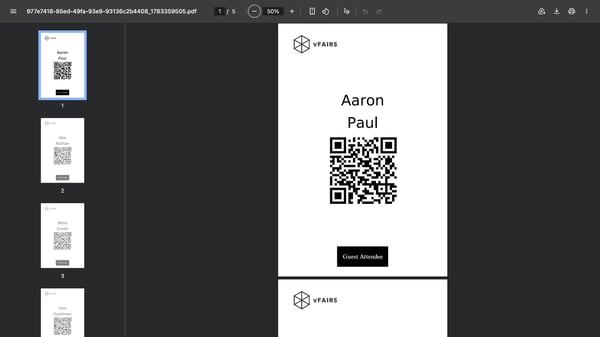
After the PDF loads, you can print the badges using either of the following methods:
- Press Ctrl + P (Windows) or Cmd + P (Mac)
- Click the Print icon in the PDF viewer
From the print modal:
- Select your connected printer.
- Configure your preferred print settings.
- Click Print.
Important Notes
- Make sure your badge printer is connected to your device before printing.
- Badge layout and printed information depend on the configured badge design.
- Large badge batches may take additional time to generate.