Table of Contents
- Requesting White-Label Access
- Marking an Event as White-Labeled
- Setting Up Your Apple and Google Developer Accounts
- Submitting App Requirements
- App Design & Development Process
- App Submission & Approval
- Testing Your Event
1. Requesting White-Label Access
White-label functionality must be enabled by the vFairs team.
To get started:
- Reach out to your vFairs Representative or Project Manager (PM)
- Request to enable White-Labeling for your organization
Note: This setting is not available in the backend and can only be enabled by vFairs staff.
2. Marking an Event as White-Labeled
Once white-labeling is enabled:
- Go to your Organization Dashboard
- Locate your event from the list
- Click the three-dot menu (⋮) on the event
- Select Mark as White-Labeled
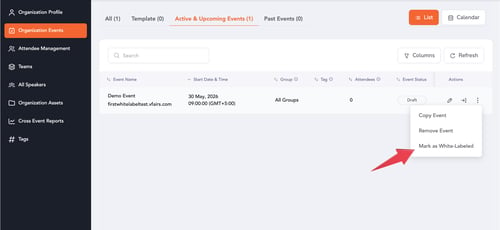
After this:
- A “White-Labeled” tag will appear on the event
To remove this:
- Open the same menu
- Click Remove as White-Labeled
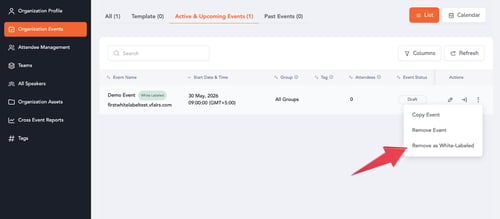
This step associates your event with your white-labeled app.
3. Setting Up Your Apple and Google Developer Accounts
White-labeled apps are now published under your organization’s own developer accounts on both the Apple App Store and the Google Play Store. vFairs still builds, submits, and updates the apps for you.
For iOS (Apple App Store):
- Enroll your organization in the Apple Developer Program as a Company / Organization
- Sign all pending agreements in App Store Connect
- Invite vFairs under Users and Access with the Admin role
See How to Set Up Your Apple Developer Account and Grant Access to vFairs.
For Android (Google Play Store):
- Create a Google Play Developer account as an Organization and complete verification
- Invite vFairs under Users and permissions with Admin (all permissions)
See How to Set Up Your Google Play Developer Account and Grant Access to vFairs.
Once both invites are sent, let your Project Manager know.
Note: Both accounts require a D-U-N-S Number, and the same number works for both. Getting one can take up to a week, so start this step as soon as white-labeling is confirmed, ideally 4–6 weeks before your event.
4. Submitting App Requirements
To create your white-labeled app:
- Contact your Project Manager to receive the White Label App Requirements Intake Form
You will be asked to provide:
- Primary Color (HEX Code)
- Logo
- App Icon Image
- Custom Splash Screen (optional)
- App Title
- Short Description
- Detailed Description, etc.
5. App Design & Development Process
Once your requirements are submitted:
- Your Project Manager will share the details with the Product and Development teams
If a custom splash screen is requested:
- You will receive Figma designs for approval
- Development begins after approval
6. App Submission & Approval
After development is complete, the app is submitted to:
- Apple App Store, under your organization’s Apple Developer account
- Google Play Store, under your organization’s Google Play Developer account
Your Project Manager will notify you once submission is complete.
Important
- Your organization’s name will appear as the developer on both store listings
- Keep both developer accounts active and vFairs’ access in place so we can publish updates for future events
- Approval timelines depend on Google and Apple
- vFairs does not control the review or approval process, the timeline will depend on the respective stores.
Once approved and live, you will be notified.
7. Testing Your Event
While your white-labeled app is:
- Under development, or
- Pending store approval
You can continue testing your event using the vFairs mobile app.
Note: The functionality remains the same, only the branding differs in the white-labeled app.