Table of Contents
- Adding ‘My Contacts’ Quick Link to the Mobile App
- Adding Contacts in the Mobile App
- Viewing Contact Profiles and Adding Notes
- Removing a Contact
- Exporting Contacts
Adding ‘My Contacts’ Quick Link to the Mobile App
Event organizers can add the My Contacts menu item to the Mobile App using the App Builder.
- Log in to your Event Backend.
- Navigate to Mobile App → App Builder.
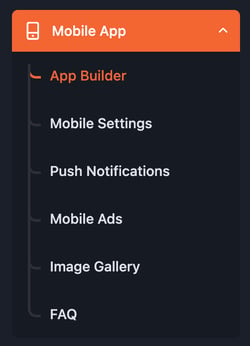
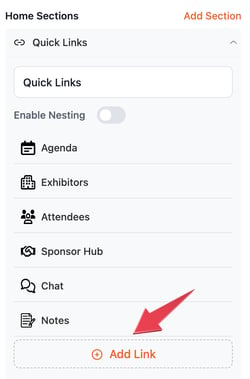
- Expand the Quick Links section in the right-hand editing panel.
- Click Add Link.
- Search for My Contacts.
- Select My Contacts to add it to the app.
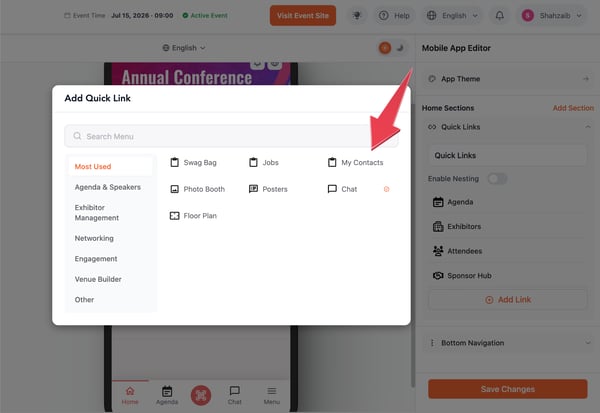
- Configure the menu item as needed and click Save Changes.
- Click Publish Changes to make the menu item available in the Mobile App.
Once published, attendees will be able to access My Contacts from the Mobile App.
Adding Contacts in the Mobile App
Once the My Contacts menu item is available, attendees can use it to build their network at the event.
- Log in to the vFairs Mobile App.
- Open My Contacts.
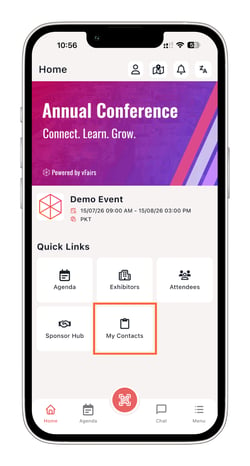
The contacts list will be empty until the attendee starts exchanging contacts.
Scanning an Attendee's QR Code
To add another event participant as a contact:
- Scan the participant's vFairs QR code.
- The participant will automatically be added to your contacts.
- A confirmation pop-up will appear with an option to view the participant's profile.
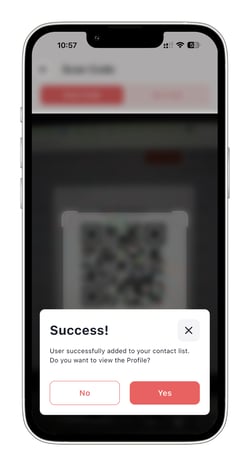
The participant's contact information will now be available in My Contacts.
Viewing a Contact and Adding Notes
After adding a contact, you can open their profile to view their information.
You can also add notes to the contact:
- Open the contact's profile.
- Add your notes in the Notes section.
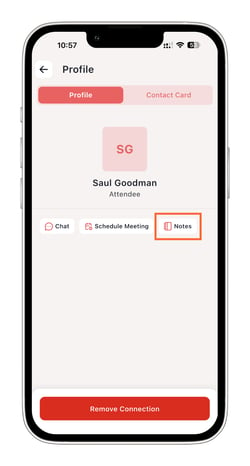
- Save the notes.
Use notes to record important details from your conversation or reminders for follow-up after the event.
Removing a Contact
You can remove a contact directly from the My Contacts listing or from their profile.
Option 1: From the Contacts List
- Open My Contacts.
- Swipe the contact card to the left.
- Tap the Delete icon.
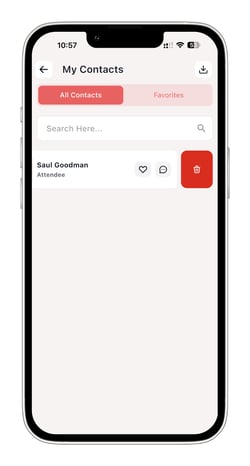
The contact will be removed from your contacts.
Option 2: From the Contact Profile
- Tap the contact to open their profile.
- Scroll to the bottom of the profile.
- Tap Remove Connection.
The contact will be removed from your contacts.
Exporting Contacts
You can export your contacts directly from the My Contacts screen.
- Open My Contacts.
- Tap the Export icon in the top-right corner.
- Choose how you want to export your contacts:
- All Contacts – Export all saved contacts.
- Favorites – Export only contacts marked as favorites.
- By Role – Export contacts based on their user role.
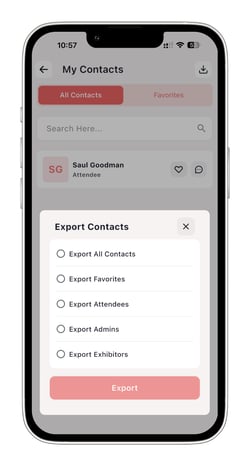
Select the required option to export the relevant contacts.