Table of Contents
- Accessing the Badge Designer
- Understanding the Badge Design Screen
- Designing a Badge
- Working with Attendee Segments
- Badge Settings
- Available Badge Elements
- Customizing Badge Elements
- Publishing Your Badge Design
Accessing the Badge Designer
- Log in to your Event Backend.
- In the left navigation menu, expand Badge Printing App.
- Click Badge Design.
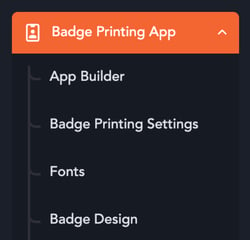
If you do not see the Badge Printing App section, contact your vFairs Project Manager to have the feature enabled for your event.
Understanding the Badge Design Screen
The Badge Designer displays all available badge types for your event.
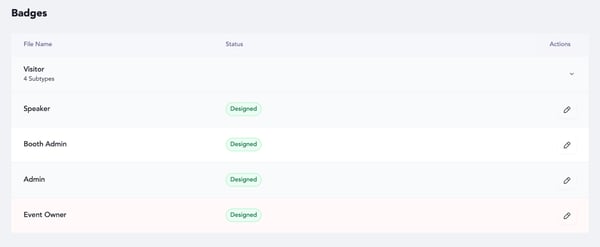
Common badge types include:
- Visitor (Attendee)
- Speaker
- Booth Admin
- Admin
Each badge type can have its own unique design and printing configuration.
Badge Status
Each badge type displays a status indicating whether a design has been created.
Possible statuses include:
- Designed
- Not Designed
- Draft
A Designed status indicates that the badge is ready for printing.
Opening the Designer
Click the Edit icon next to any badge type to open the Badge Designer and begin customizing that badge.
-png.png?width=600&height=248&name=Badges%20Screen%20(2)-png.png)
Designing a Badge
When the designer opens, you'll see:
- A badge preview canvas in the center
- Design tools on the right
- Badge type and segment selection on the left
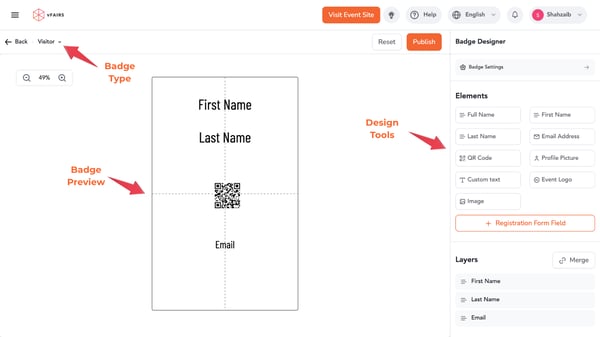
The badge preview represents the final printed badge.
You can:
- Add fields
- Add images and logos
- Add QR codes
- Add custom text
- Reposition elements
- Resize elements
- Preview the final layout before publishing
Working with Attendee Segments
Under the Visitor (Attendee) badge type, you may see one or more attendee segments, such as:
- Default
- VIP Attendees
- Sponsors
- Exhibitors
- Any custom attendee segments created for your event
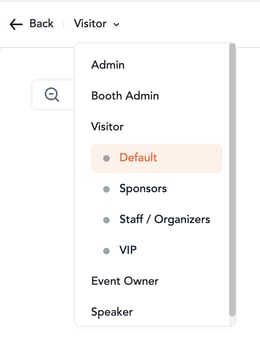
Each segment can have its own badge design, allowing you to customize layouts, branding, and printed information for different attendee groups.
For example:
- VIP attendees may have a special badge design
- Sponsors may include sponsor-specific branding
- Exhibitors may have booth information displayed
To learn how to create attendee segments and enable them for badge printing, refer to:
How to Create User Segments for Badge Printing
Simply select the desired segment and begin designing its badge.
Badge Settings
The Badge Settings section allows you to configure the overall badge layout.
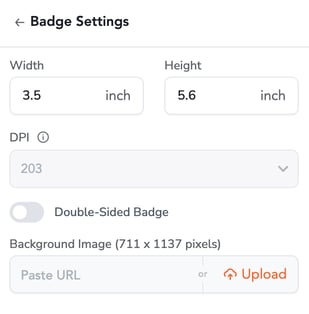
Available options include:
- Badge Dimensions (Width and Height)
- Double-Sided Badge: Enable this option if your badge will be printed on both sides. When enabled, you can design the front and back of the badge separately.
- Background Image (Recommended Size: 711 x 1137 pixels)
These settings define the badge canvas and should be configured before adding badge elements.
After making adjustments, review the badge preview to ensure all elements fit correctly within the printable area.
Available Badge Elements
The Badge Designer includes the following elements:
| Element | Description |
|---|---|
| Full Name | Displays the attendee's full name. |
| First Name / Last Name | Displays individual name fields. |
| Email Address | Displays the attendee's registered email address. |
| QR Code | Generates a scannable QR code used for attendee identification, check-in, and lead retrieval. |
| Profile Picture | Displays the attendee's uploaded profile photo. |
| Custom Text | Adds static text such as "VIP", "Speaker", or "Exhibitor". |
| Event Logo | Displays your event logo. |
| Image | Adds custom graphics, sponsor logos, or branding elements. |
| Registration Form Fields | Displays values from custom registration fields such as Company Name, Job Title, Country, Membership ID, or Booth Number. |
To add an element to the badge:
- Locate the desired field in the design toolbox.
- Click the + icon next to the field.
- The field will be added to the badge canvas.
- Drag and position it as needed.
Adding Images from the Asset Library
When adding an image from the Pre-defined Elements section, you can either upload a new image or select an existing image from your organization’s Asset Library.
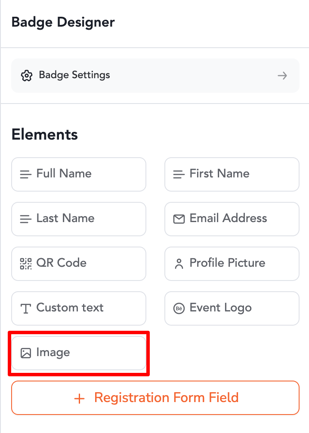
After selecting the Image option, click on Upload and then:
- Choose Asset Library to use an existing organization asset, or select the option to Upload a new image from your desktop.
- If you select Asset Library, you will see the assets that have already been added to your organization.
- Select the image you want to use. It will be added to the badge canvas.
- If you choose to upload a new image, select the file from your desktop and add it to the badge.
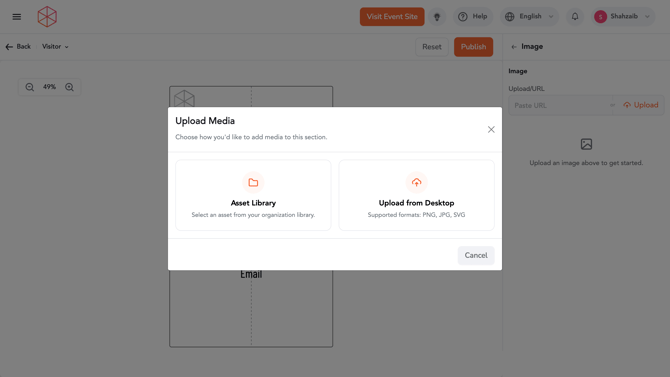
Using the Asset Library allows you to reuse existing organization assets, such as logos and branding elements, without uploading them again for each badge design.
To learn how to add content to your organization's Asset Library, refer to:
How to Add Content to Organization Assets in the Event Management Dashboard
Customizing Badge Elements
Click any element on the badge canvas to open its settings panel.
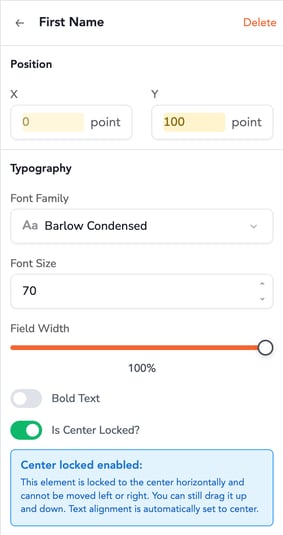
Position
Control exactly where the element appears on the badge using:
- X Position
- Y Position
Typography
For text-based fields, you can configure:
- Font Family
- Font Size
- Bold Text
Font sizes can be increased up to 500 for large badge elements such as attendee names or headers.
If your event requires custom branding, you can upload and use your own fonts.
To learn more, refer to:
How to Upload and Use Custom Fonts in Badge Designs
Rotation
Elements can also be rotated within the badge design.
When you select an element such as an image, logo, QR code, or text field, a rotation icon will appear beside the element on the badge canvas.
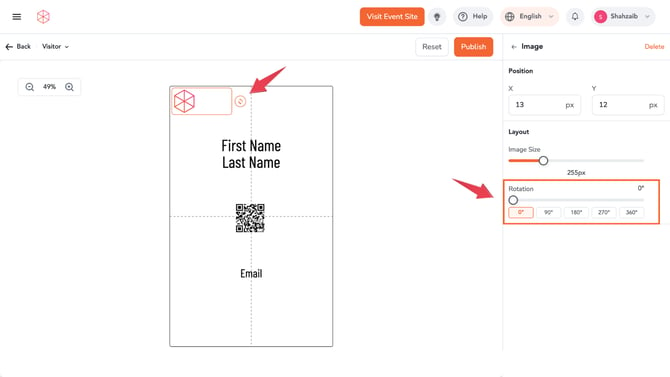
You can rotate the element in two ways:
- Drag the rotation icon using your cursor for free rotation
- Use the Rotation slider in the right-hand settings panel
The slider includes preset rotation values such as:
- 0°
- 90°
- 180°
- 270°
These options help align elements vertically, upside down, or sideways depending on your badge layout requirements.
Center Lock
Enable Center Lock to automatically keep an element centered horizontally on the badge.
Orientation
Enable Upside Down when designing a double-sided badge that will be printed on a single sheet. This option flips the selected element so it appears correctly when the badge is folded or viewed from the reverse side.
Common use cases include:
- Double-sided event badges
- Folded tent-style badges
- Badge layouts where the back side needs to mirror the front side's orientation
Publishing Your Badge Design
Once your badge design is complete:
- Review all elements and positioning.
- Verify that the correct badge type or segment is selected.
- Click Publish Changes.
Publishing makes the badge available for printing through the vFairs Onsite App and Badge Printing workflows.
We recommend printing a test badge before your event to confirm alignment, field placement, and overall appearance.