Table of Contents
- Prerequisites
- What is Booth-Level Lead Capture Access?
- Enable or Disable Lead Capture Access for Booths
- Grant Lead Capture Access to Booth Users
- Configure Lead Capture Access While Creating Booth Users
- Import Booth Users with Lead Capture Access
- Important Notes
Prerequisites
Before using the Lead Capture App, the Lead Capture module must be enabled for your event.
If you do not see the Lead Capture module in your event backend, contact your dedicated Customer Success Manager or project manager to enable it for your event.
If the Lead Capture module is already enabled for your organization but was not selected during event creation:
- Go to Overview in the Event Backend.
- Locate the Event Features widget.
- Enable Lead Capture from the available features.
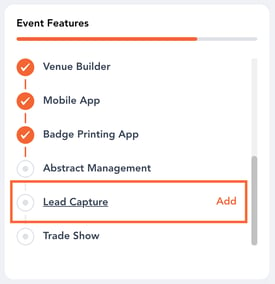
Once enabled, you can control Lead Capture access:
- Per booth
- Per booth user
Note: Event Organizers always have access to the Lead Capture App if the module is enabled for the event.
What is Booth-Level Lead Capture Access?
Booth-level Lead Capture access determines whether a booth can use the Lead Capture App to collect attendee leads during the event.
This setting is enabled by default for all booths but can be disabled individually whenever needed.
Enable or Disable Lead Capture Access for Booths
Follow these steps to manage Lead Capture access for individual booths:
- Log in to the Event Backend.
- In the left navigation menu, go to Exhibitor Management.
- Click Booth Management.
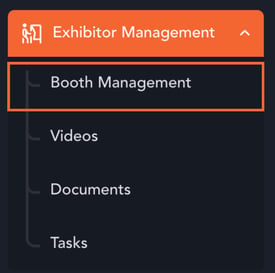
You will be taken to the Booth Listing screen where all booths are displayed.
Locate the Lead Capture Access toggle beside the booth name.
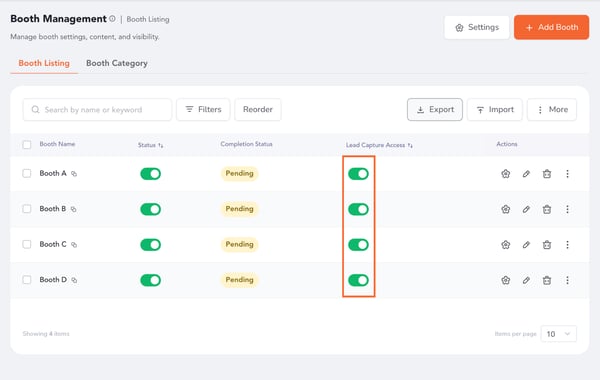
Disable Lead Capture Access
- Turn off the Lead Capture Access toggle.
- A confirmation popup will appear.
- Click Yes, Disable to confirm.
The booth will no longer be able to access the Lead Capture App.
Enable Lead Capture Access
- Turn on the Lead Capture Access toggle.
- A confirmation popup will appear.
- Click Yes, Enable to confirm.
The booth will regain access to Lead Capture functionality.
Grant Lead Capture Access to Booth Users
In addition to booth-level access, organizers can also control Lead Capture access for individual booth users.
To grant access to an existing booth user:
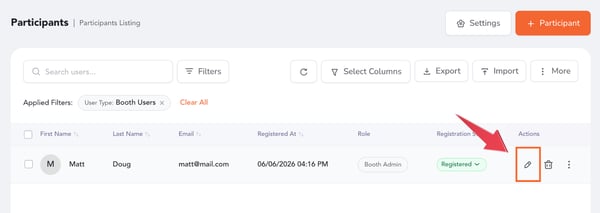
- Go to Participants in the Event Backend. Click Attendees & Registrants.
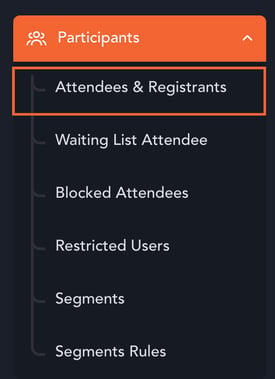
- Locate the Booth User you want to update.
- Edit the user profile.
- Scroll down to find the Lead Capture Access toggle.
- Enable the toggle to grant Lead Capture access.
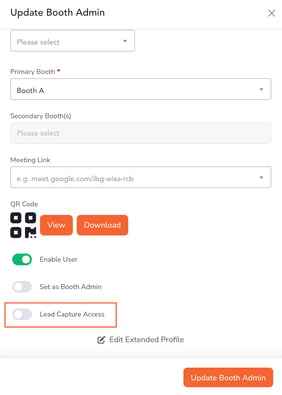
Once enabled, the booth user will be able to log in to the Lead Capture App.
Configure Lead Capture Access While Creating Booth Users
You can also configure Lead Capture access while creating a new Booth User.
- Go to Participants.
- Click + Participant.
- Select Add Booth User.
- Fill in the required user details and select the associated booth.
- Scroll down to locate the Lead Capture Access toggle.
- Leave the toggle enabled to grant Lead Capture access.
- Disable the toggle if you do not want this user to access the Lead Capture App.
Import Booth Users with Lead Capture Access
You can also configure Lead Capture access while importing Booth Users in bulk.
Step 1: Download the Booth User Import Template
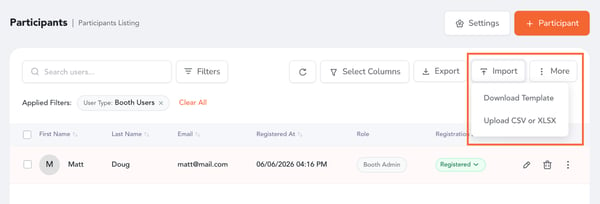
- Go to Participants in the Event Backend.
- Click Import.
- In the popup, click Download Template.
- From the dropdown, select Booth User Template.
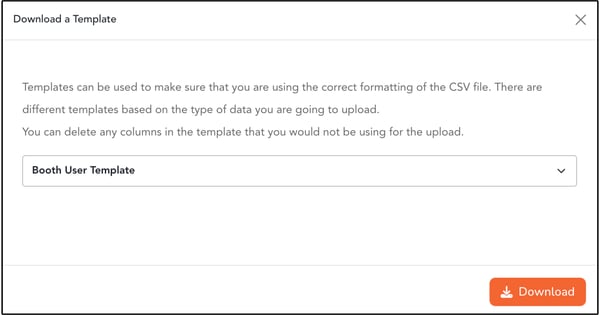
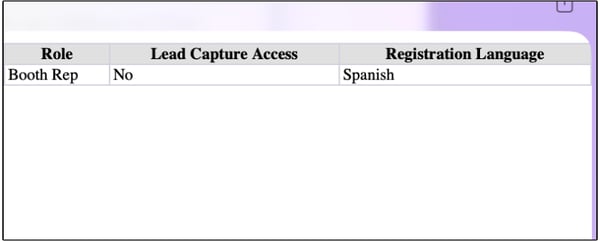
The downloaded sample file will show all supported import fields, including the Lead Capture Access column.
Step 2: Configure Lead Capture Access in the Import File
In the Lead Capture Access column:
- Enter Yes to grant the booth user access to the Lead Capture App.
- Enter No to prevent access.
Fill out the remaining Booth User information as required.
Step 3: Upload the Import File
- Return to the Participants section.
- Click Import again.
- Select Upload CSV or XLSX.
- Choose your completed import file.
- Map the fields accordingly.
- Complete the import process.
Once uploaded, booth users with Lead Capture Access enabled will be able to log in to the Lead Capture App immediately.
Important Notes
- Lead Capture access can be controlled separately at the booth level and booth user level.
- Disabling Lead Capture for a booth prevents all associated booth users from using the Lead Capture App.
- There is currently no bulk action available to enable or disable Lead Capture access for multiple booths at once.
- Event Organizers always retain Lead Capture access when the module is enabled for the event.
Booth Users created directly from the Lead Capture App or the Onsite App will have the Lead Capture Access toggle disabled by default.
To allow these users to log in to the Lead Capture App, Event Organizers must manually enable the Lead Capture Access toggle from the Event Backend by editing the respective Booth User profile.
Managing Lead Capture access carefully helps ensure proper security, licensing control, and streamlined lead management during your event.