Introduction: Setting up your exhibition booth effectively is crucial for maximizing your presence and impact at any event. Whether it’s a trade show, conference, or expo, the way you configure your booth can significantly influence attendee engagement and brand perception.
Step 1: Log Into the Exhibitor Portal
- Access Your Account: Start by logging into the exhibitor portal with your credentials. This portal is typically provided by the event organizers and is your central hub for all booth-related configurations and updates.
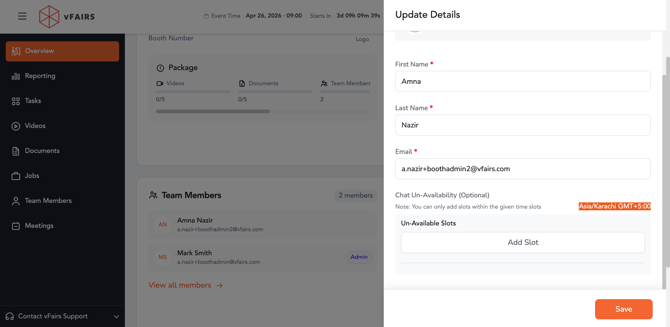
- When logging in for the first time, system will show a modal where exhibitors will be filling out any mandatory information related their profile details.
Step 2: Navigate to Exhibitor Dashboard (Overview Page)
- Overview Page: Once logged in, system lands users to overview page. This dashboard provides a snapshot of all your exhibition-related stats.
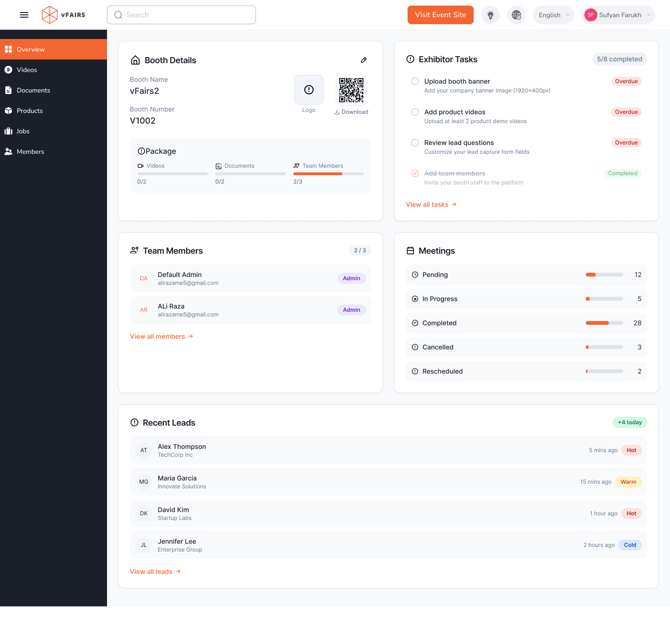
The Booth Overview Page in the Exhibitor Portal provides a centralized dashboard with key information and insights related to your booth. The widgets displayed on this page are dynamic and depend on the modules enabled for your event.
Available Widgets on Booth Overview
1. Booth Details Widget
This widget displays essential information about your booth, including:
- Booth name
- Company logo
- Booth number (for hybrid or in-person events)
- Booth QR code (if applicable)
- Usage limits such as:
- Number of documents uploaded
- Number of videos uploaded
- Number of team members added
2. Exhibitor Tasks Widget
- Visible only when the Task Management Module is enabled.
- Displays all tasks assigned to your booth.
- Shows the status of each task (e.g., pending, in progress, completed).
- Helps exhibitors track and complete required actions.
3. Team Members Widget
- Displays all users associated with your booth.
- Highlights your booth team, including Booth Admins and Booth Representatives.
- Helps you quickly view and manage your team.
4. Meetings Widget
- Appears when the Meeting Module is enabled for the event.
- Provides a summary of meeting statistics, including:
- Pending meetings
- Accepted meetings
- Completed meetings
- Cancelled meetings
5. Recent Leads Widget
- Available when Lead Capture is enabled.
- Displays the top 5 most recent leads scanned or captured by your booth.
- Helps exhibitors quickly track new potential connections.
Step 3: Customize Your Booth
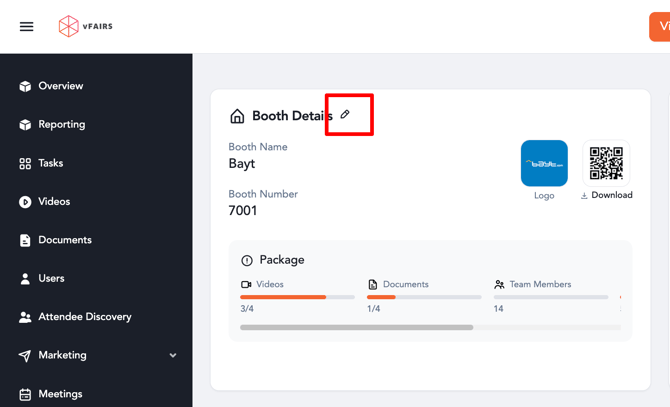
- Access Booth Builder: Click on the 'Configure Booth' button located within the Overview section. This action will direct you to the Booth Builder, a comprehensive tool where you can customize various aspects of your booth's layout and features.
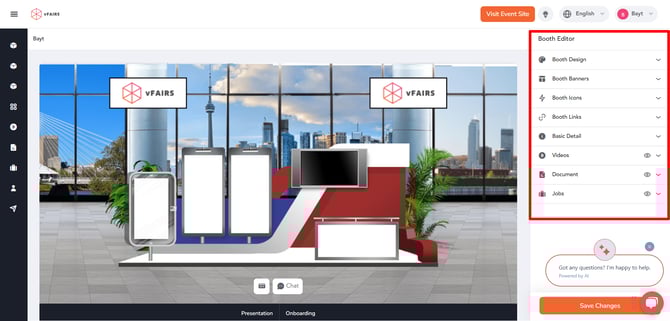
- Utilize Booth Editor Tools: Once in the Booth Builder, you’ll have access to a range of Booth Editor tools. These tools are designed to help you customize your booth to fit your brand’s needs and the specific requirements of the event.
- We have WYSIWYG (What you see is what you get) system in our booth builder so you get live preview of the booth while creating it. This gives you a live preview of how your booth will appear to attendees.
- Once you have all your desired changes, click on save changes, or if you have completed setting your booth, you can mark your booth as complete.
Conclusion: Accessing and setting up your booth through the exhibitor portal is a critical step in preparing for a successful event. By following these steps, you can ensure that your booth is not only visually appealing but also fully equipped to engage attendees and showcase your brand effectively.
Best Practices:
- Plan Ahead: Before you log in to set up your booth, have a clear plan regarding the design, content, and objectives. Knowing what you need to accomplish can make the setup process more efficient.
- Optimize for Engagement: As you customize your booth, consider how each element can contribute to attendee engagement. Interactive elements, clear signage, and accessible information are key.
- Regular Updates: Keep your booth information and designs updated in the lead-up to the event to accommodate any changes in your marketing strategy or event guidelines.
By effectively accessing and utilizing the booth setup form, you can create an engaging and memorable exhibition space that not only attracts visitors but also provides them with a valuable and lasting impression of your brand.